
Map Menus
These are comon features to every map which are handy to be familiar with.
Zooming In & Out
Click on any map function and you will be presented with a standard view like this:
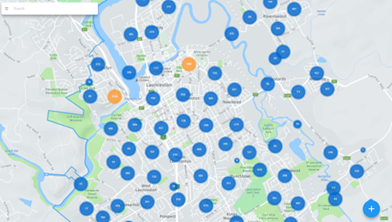
• You can zoom in and out with your mouse scroll or on a touch device with two fingers to pinch in or stretch out.
• To move around the map simply click, hold and drag the map in the direction you want to move.
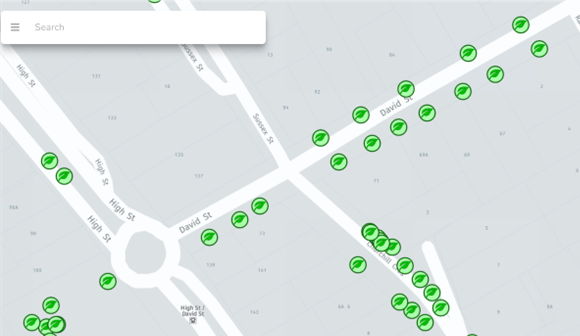
As you zoom out, the grouping of points will automatically adjust based on the scale of the area in view. As you zoom in, you will eventually get to individual markers that have leaf icons.
NOTE: You must be zoomed to the individual markers to be able to select an existing data point on a map.
Search Address/Tree ID
Forestree has an inbuilt search function to make navigating faster.
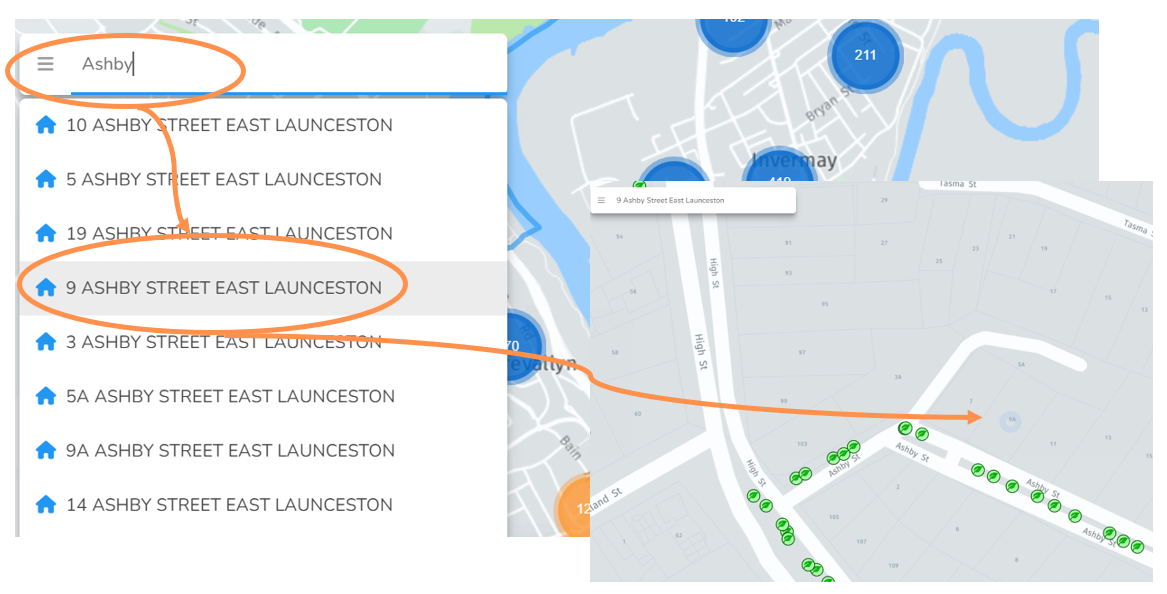
• Click on the search bar in the top left and start typing a local street address.
• After a few letters a drop down should appear with some options. Select an address and you will be zoomed down to that location on the map.
You should now see your selected address pulsing with a blue dot.
NOTE: You can either type the full address, or just the street name and then select any property on the street.
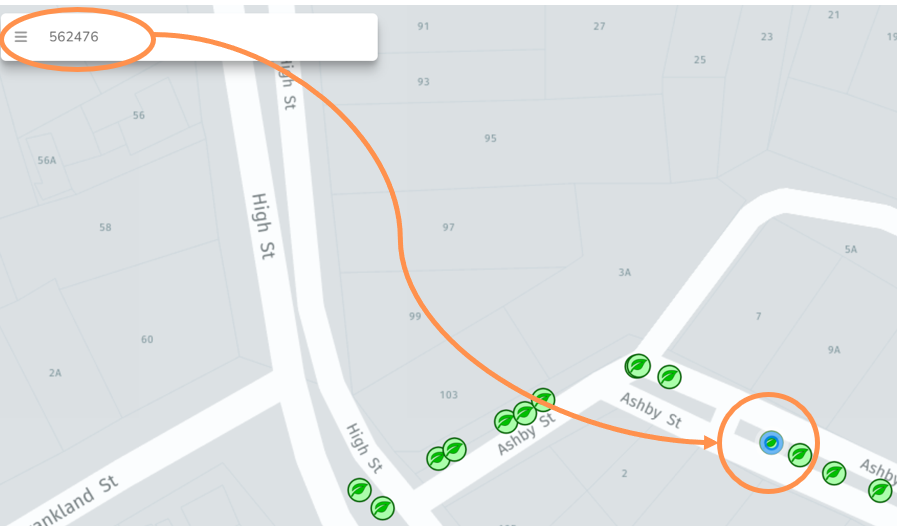
You can also search by unique Tree ID number in the same search bar and the relevant tree point will pulse in blue.
Turn Layers On/Off
Default map settings are clutter-free, however sometimes it is handy to overlay data.
• Select the three horizontal bars in the top left to have the menu expand
• Select which toggle layer you would like to appear on the map
• Any layers on show up as bright green. Click again to turn off and the button will go back to grey.
In the example below you can see the future planting locations on the same map as the existing tree assets.
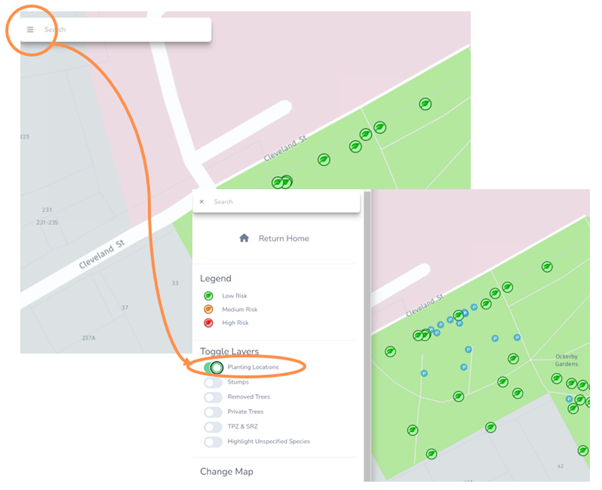
The toggle layers include:
• Planting Locations – from the planting map
• Stumps – from the stumps map
• Removed trees – from your works map (if you have records of completed removals)
• Privately owned trees - Default toggle is off as you typically don't want these included in your asset management lists, but you may have a register of significant trees on private land you want spatial access to.
• TPZ & SRZ – Displays tree protection zone and structural root zone, if you have the relevant DBH information.
• Highlight Unspecified Species - Displays any trees which have been located but not yet assigned their scientific species name.
Switch Between Maps
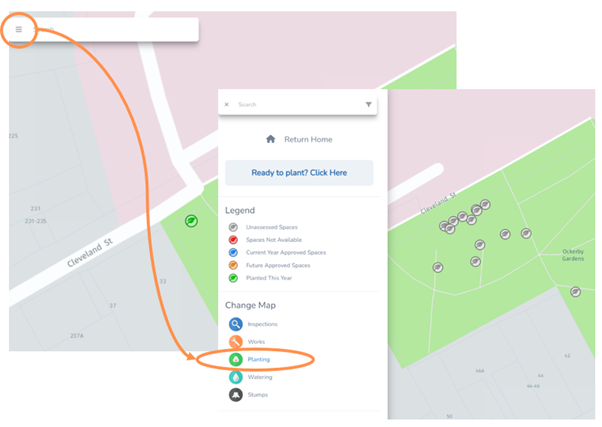
• Select the three horizontal bars in the top left to have the menu expand
• Select which map layer you would like to change to.
In the example below the map was changed from inspections to planting, but you can select any of the available maps.
Toggle Basemap
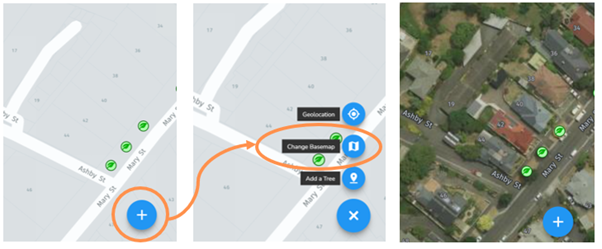
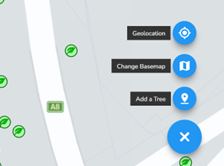
• Select the plus button in the bottom right of a map
• Select “Change Basemap” and this will toggle from either the default map or satellite basemap.
Toggle GPS Location
When out in the field with a data enabled device, you can take advantage of Geolocation.
• Select the plus button in the bottom right of a map
• Select “Geolocation” and this will zoom to your devices current location
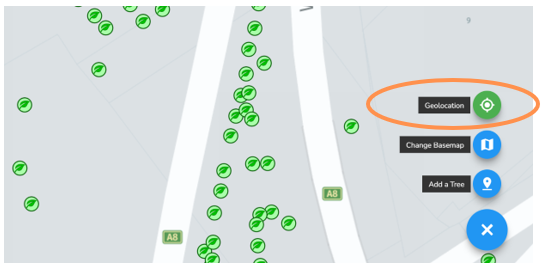
NOTE: When activated the function button shows up as green. If you click this button again, the geolocation function will turn off and the button return to blue.
Add a Tree/Planting Location
See the following articles:
Add a Tree
Add a Planting Location