Move Trees
While entering a new data point
You can easily move the leaf icon marker on the map if you are in the process of adding a new existing tree, stump or new planting location and have not yet hit “save”.
To move the location while adding a new point, simply click, hold and drag the marker to the correct spot.
Need to move an existing, saved data point
Trees rarely move, but sometimes you may wish to move the location of a saved data point to correct data entry errors or if the tree has been transplanted.
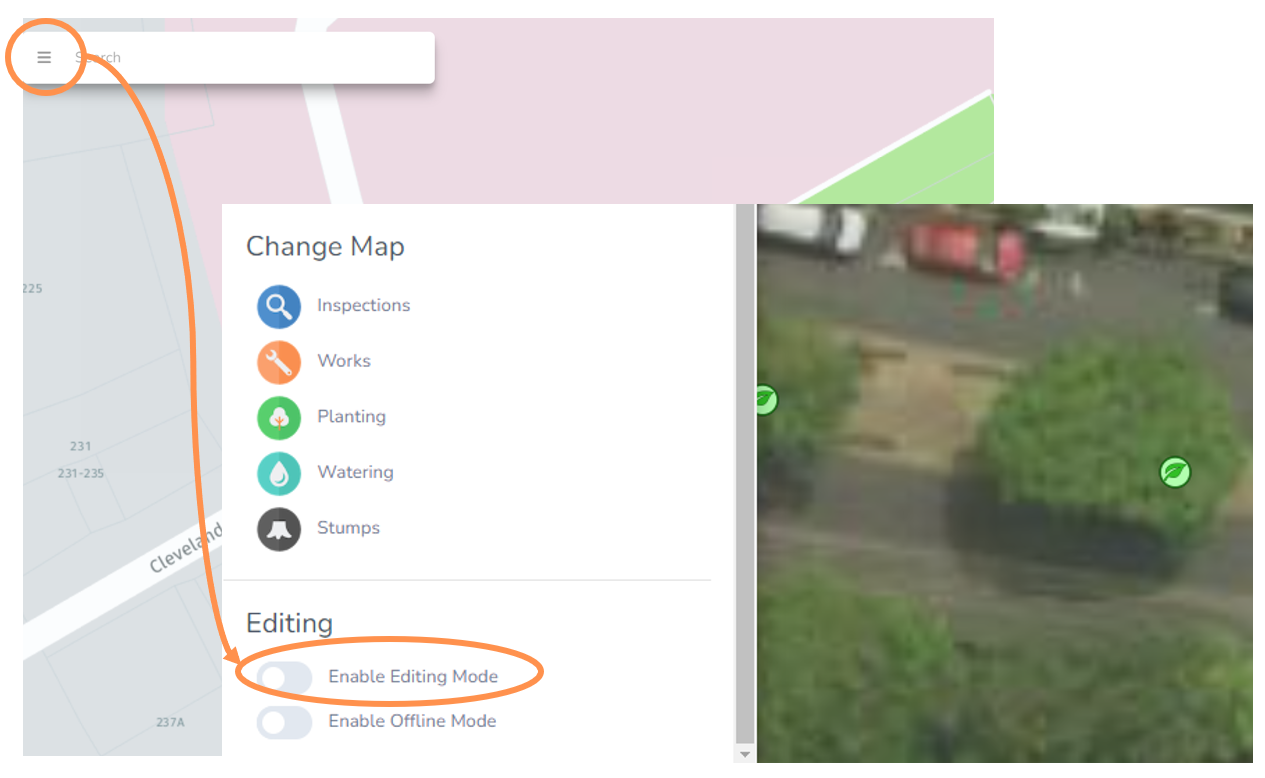
• Select the three horizontal bars in the top left to have the menu expand
• At the bottom of the left menu, select the toggle button to Enable Editing Mode.
NOTE: If you don't see this option you may not have high enough administration rights. Please speak to a supervisor to make the change or adjust your editing permissions.
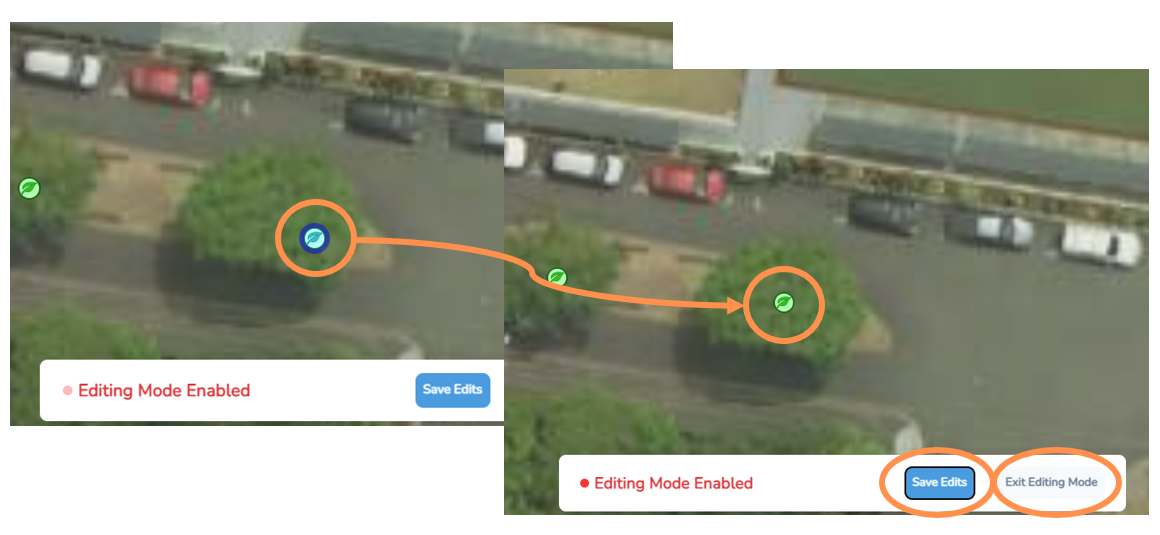
• You should notice a large “Editing Mode Enabled” bar along the bottom screen.
• Click on the tree marker you want to move. It should change to blue.
• Drag and move the tree point.
• If you are happy with the change, select Save Edits.
• Select Exit Editing Mode. This will take you back to the normal map view.
In the example below this existing tree marker was moved more to the centre of the tree.