Works List
These lists keep track of all the open and recent completed works so you can search, filter, and prioritise.
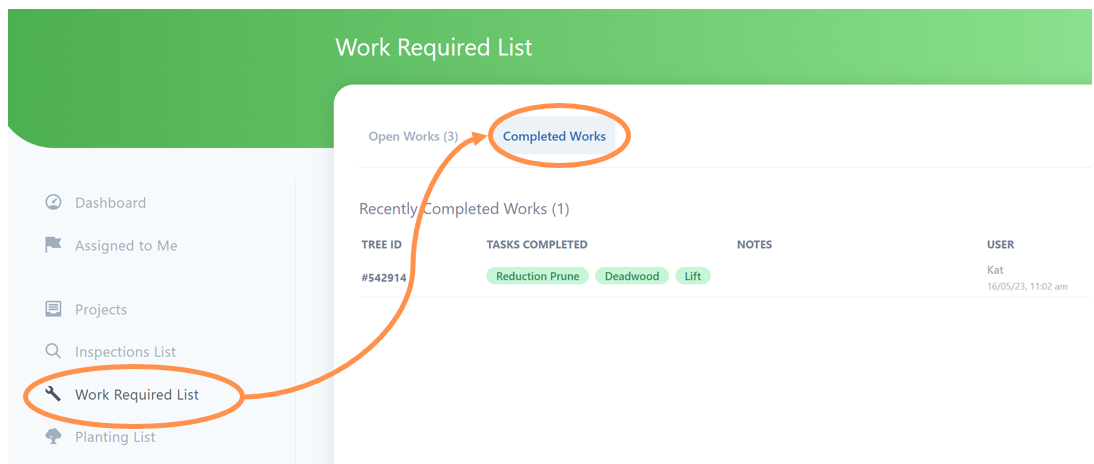
You will find the Work Required List on the left side menu from the Main Dashboard (homepage).
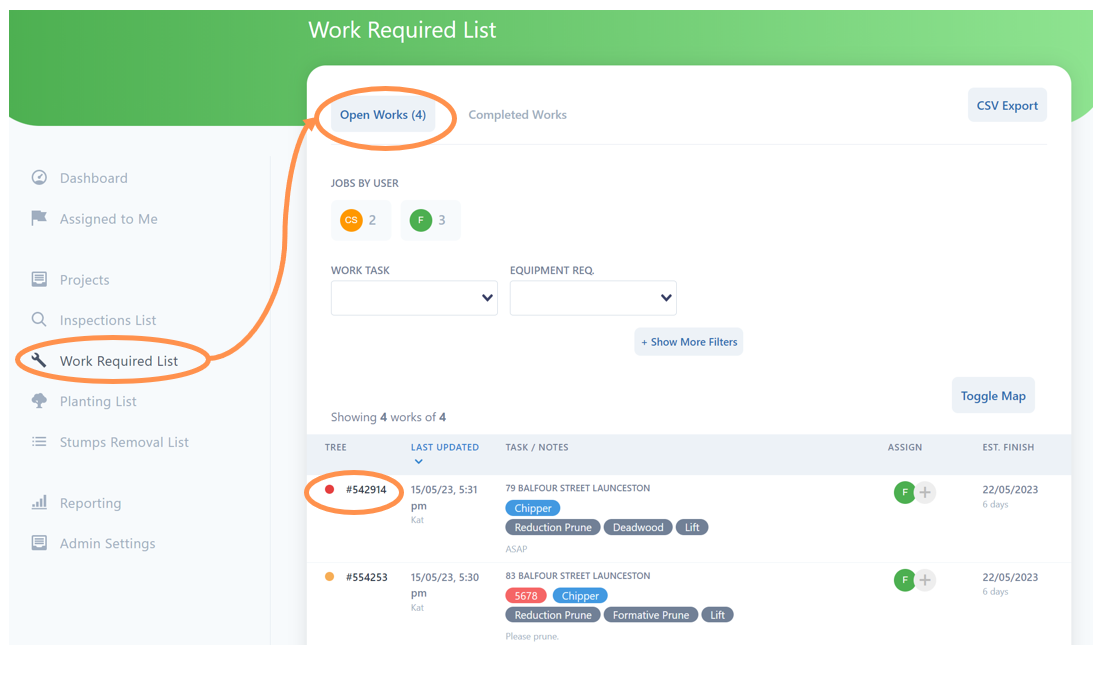
Open Works
This is all current work tasks in a list, in order of their most recent update.
• Open Works is the default tab to appear on the Work Required List page.
• If you select a Tree ID number, you will be automatically taken the Works Map, zoomed down to that tree with the left menu ready so you can click through the complete work steps.
Works By User
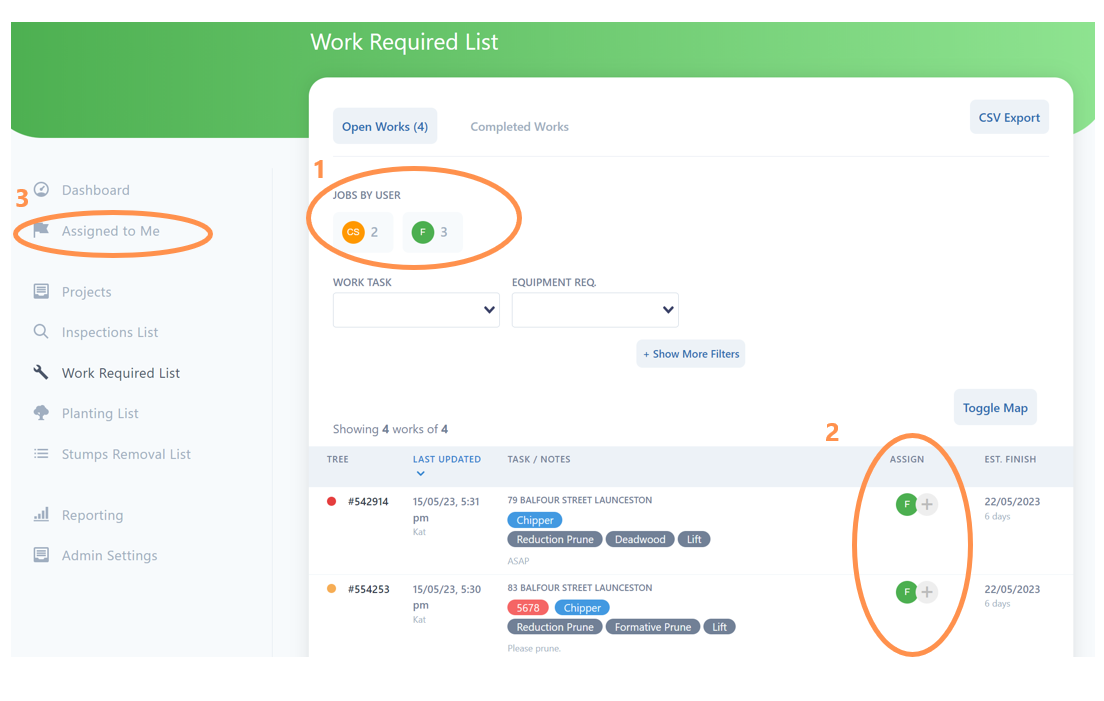
1. Jobs by User – At the top of the page is a row of current users with open tasks and a total tally next to their initials. You can click on one or more of these users to have the list filter to just them.
NOTE: If you have any unassigned tasks these will show with the initial “U” in a grey box.
2. You can assign staff either when creating the works, or on this page by using the button under “Assign To”.
3. You can also search for jobs to the user currently signed in (ie you!) by selecting the “Assigned to Me” page on the left menu.
Filter the List
You can filter the list by a range of attributes. You can filter by one or more categories.
• Jobs by User – As outlined above.
• Work Task – Simply select one or more tasks from the drop down options.
• Equipment required – Select from the drop down options
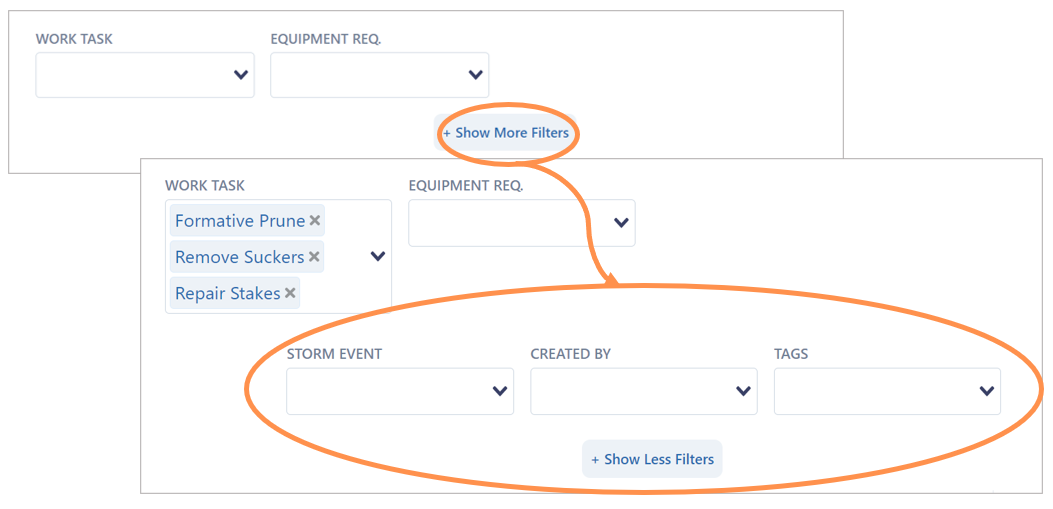
For a few more options, select the Show More Filters button and the following will expand
• Storm Event – Allows you to filter only those tasks created by a recent extreme weather.
• Created By – Allows you to filter by the person who set the tasks.
• Tags (if you have been using unique tags on your tree data, eg young tree care, this function can now filter by them)
Select the small “x” beside any selected filters to remove them at any point will revert back to the entire asset list.
Re-Order List by Date
The Open Works list opens by default in order of their most recently updated/created date.
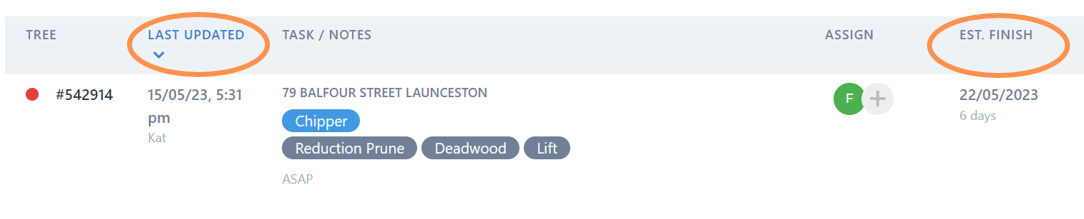
• If you select the Last Updated heading, the list will reorder with the oldest created/updated task first.
• If you select the Estimated Finish column heading, it will sort by the earliest due date (or oldest overdue date if applicable).
Open Works List Toggle Map
While you can simply use the list format, there is also an inbuilt map function on the Work Required List page.
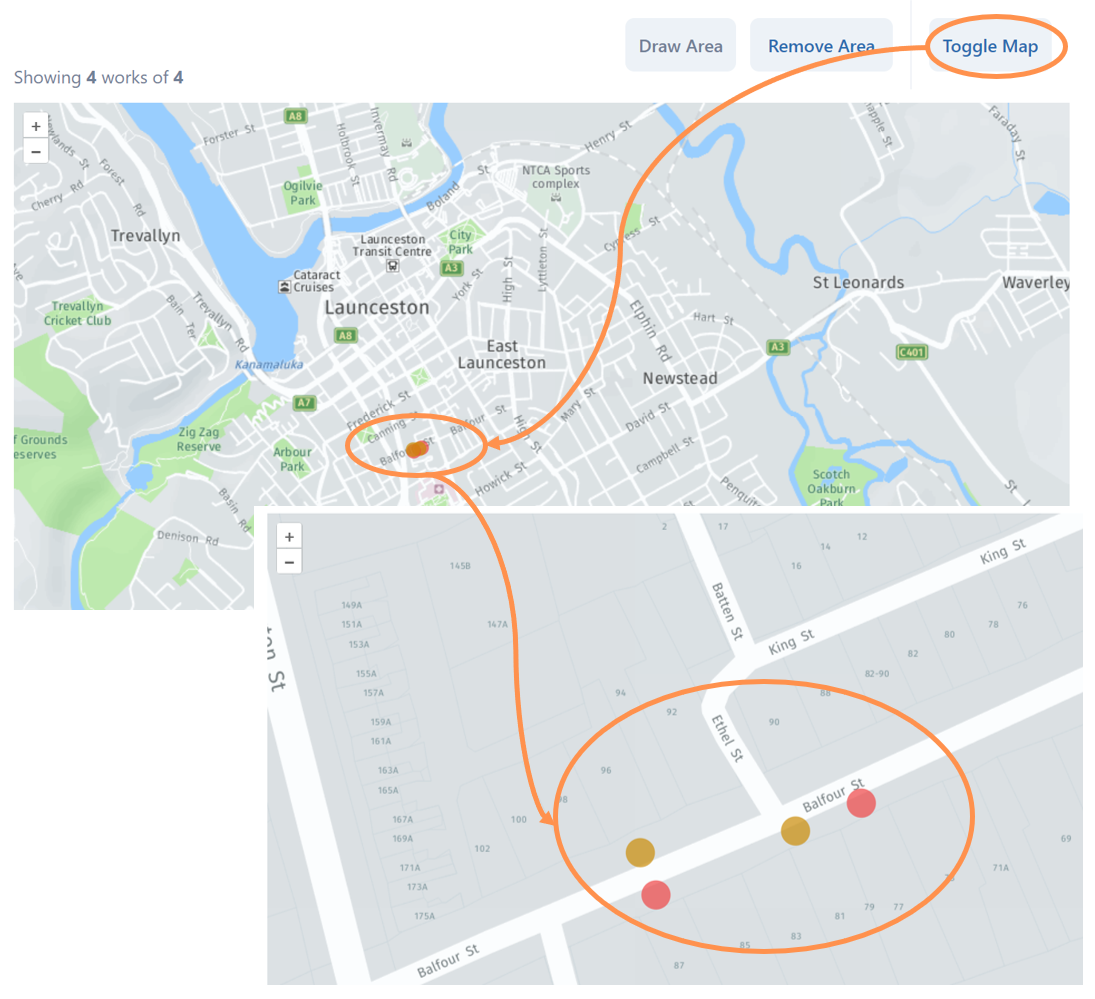
• Select the Toggle Map button and an embedded map will appear showing any current works required with coloured dots, coded to their priority level. The list is still visible just below the map.
• With this map feature on, you can zoom and drag down to a closer view like the example below.
HINT: This is a handy way to visualise proximity and make efficient work plans.
Draw Area
In Toggle Map view you can draw a polygon area around a group of points to filter the list spatially rather than by categories.
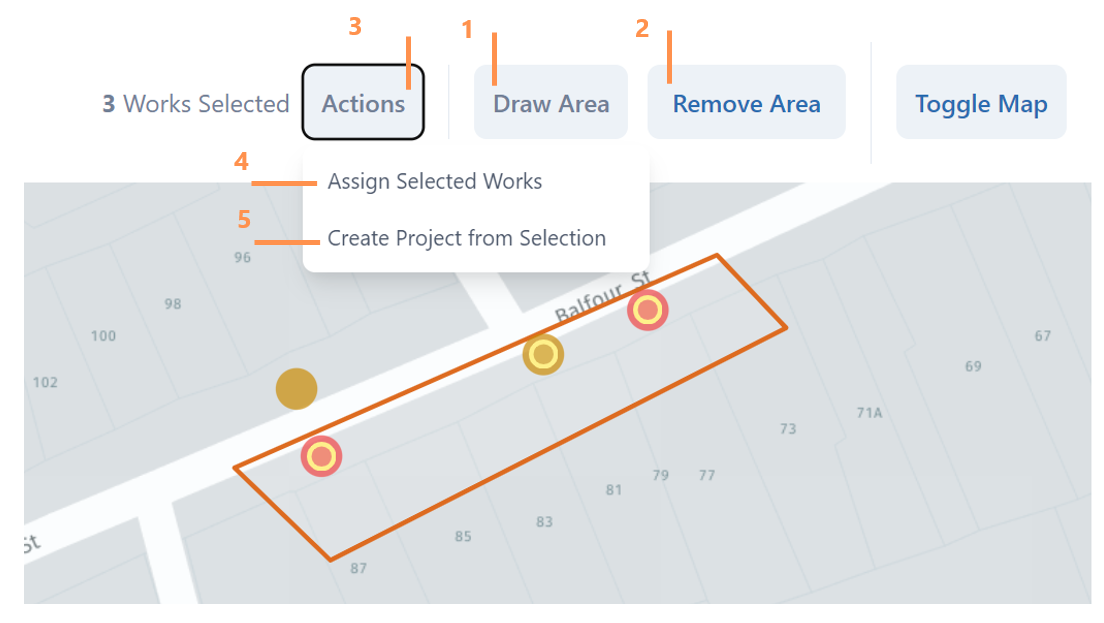
1. Select the Draw Area button. Click on the map, drag to draw a line, click to mark a corner, drag to draw another line and so on. Double click when you are done and it will snap the polygon together. Any open works points within the polygon drawn area will automatically highlight with a yellow circle as selected.
2. NOTE: At any point you can select Remove Area button to delete your polygon shape, so don’t be afraid to have a few attempts.
3. Once you have a completed drawn area, you can select the Actions button and will have two options.
4. Use the Assign Selected Works option to bulk assign the selected works to a single user.
5. Use the Create Project From Selection option to have the selected works converted into a new project which can be tasked to a staff member or external contractor. Select this button, create a project title, save and you will move into the projects form. Refer the the Works Project user guide for the next steps on this project tool.
Completed Works List
This is a list of any recently completed works.
• Navigate to this list by selecting the Completed Works tab at the top of the Required Works List page.