Water a Tree
Watering Map
The Watering Map allows you to water newly planted trees. Trees are automatically added to this map based on their planted date.
You can add/remove trees from the Watering map using the Flag Tree option. For example a new tree may have been planted in an irrigated reserve so you can remove it from the watering list. Refer to the user guide on Flag a Tree on how to do this.
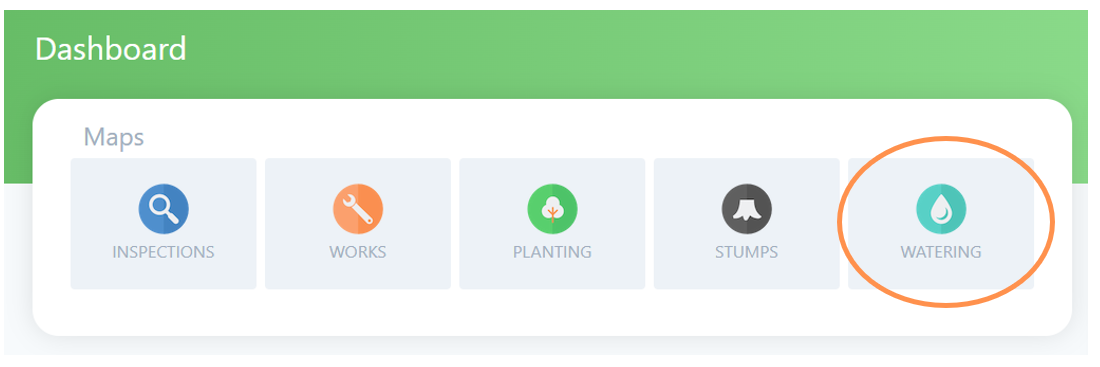
To view, assess or log watering, first go the Watering Map by selecting the water drop icon on the Dashboard.
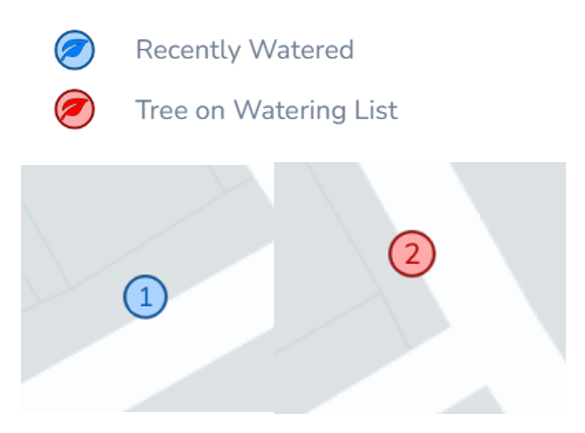
Any watering locations will be highlighted on the map to make them easy to spot. The colour coding matches a legend available on the left menu as below.
Firstly the colour indicates if it is recently watered (blue) or due to be watered (red). The number in the icon circle indicate the year since planting.
The example below shows a first year planted tree that has recently been watered and a second year tree due to be watered.
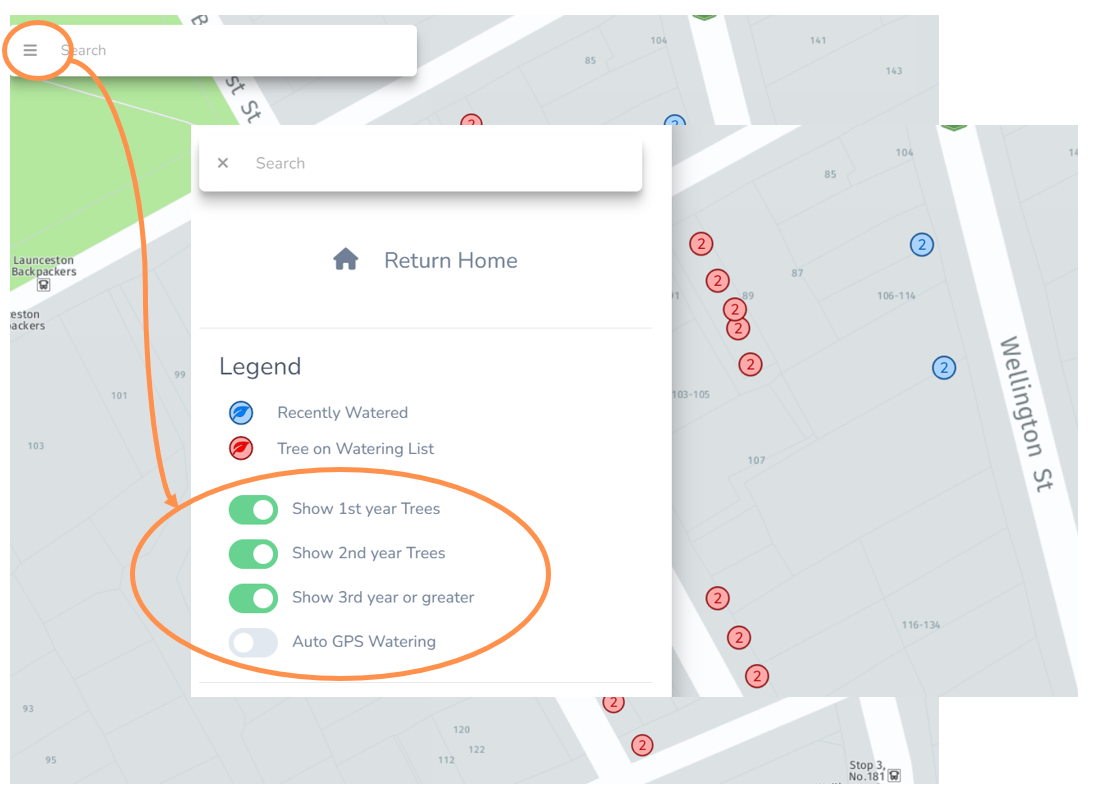
You can navigate by zoom & drag, using the search bar for an address, using the geolocation function (refer Maps user guide for more detail on these options).
In addition on the Watering Map you can also use the toggle buttons on the left menu to filter the map. The default is for all toggle buttons to be on to show all trees in watering list. Select one or more so that you can only see where the first, second and/or third year trees are.
Water a Tree
It is very simple to mark when a tree has been watered.
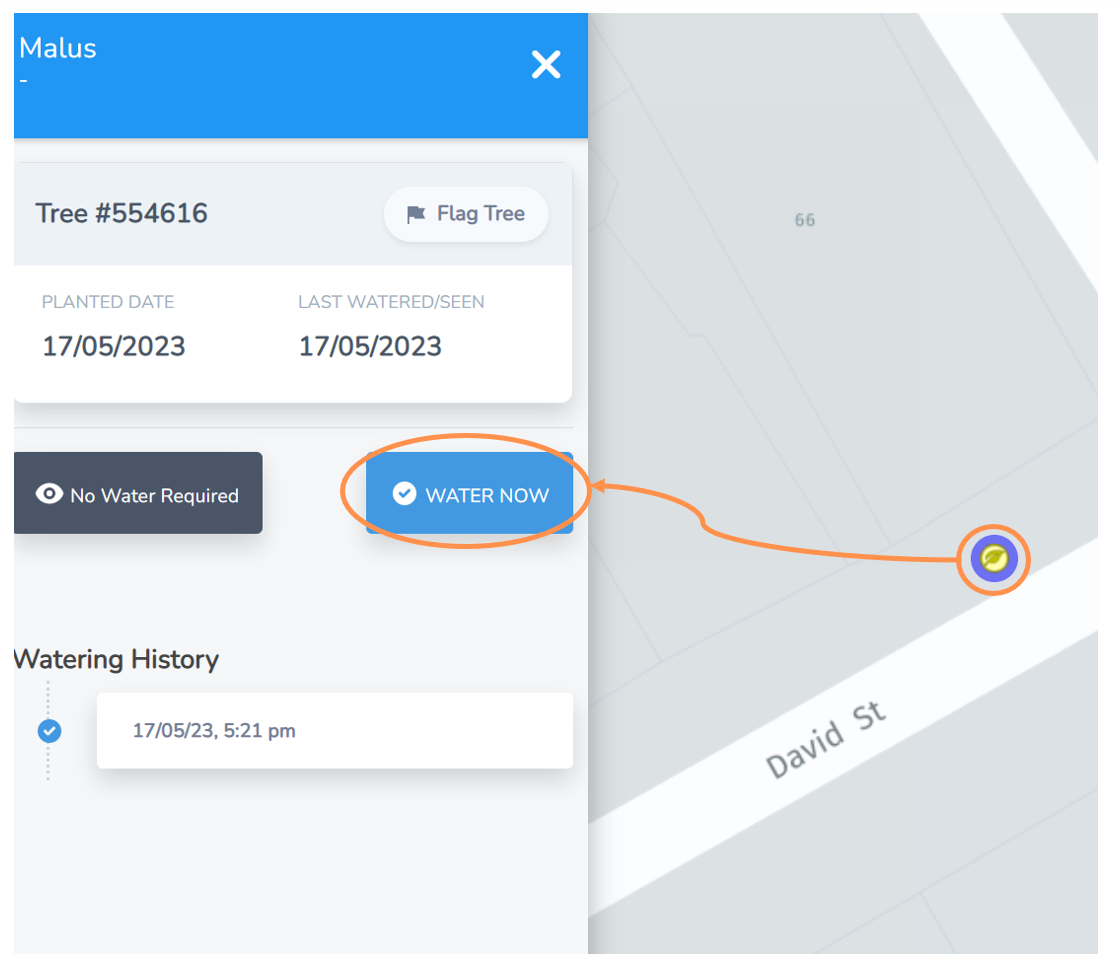
• Navigate to the watering location asset on the Watering Map view.
• Select the icon maker and the menu to the left will expand.
• Select the Water Now button.
• The date and time will appear on the the watering history log and the icon marker will turn blue to indicate it has recently been watered. Done.
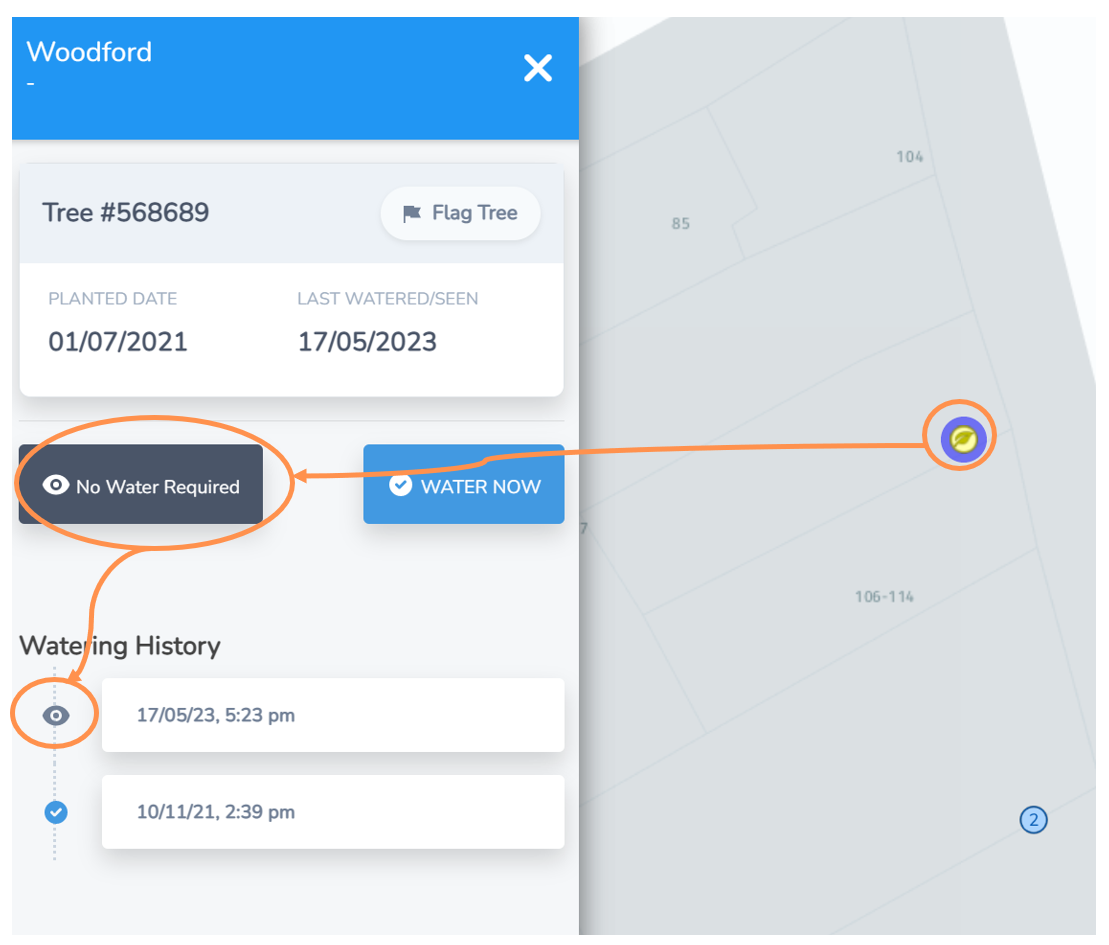
No Water Required
• Sometimes you may visit a young tree to water it, but due to weather, passive irrigation or perhaps a helpful neighbour the tree doesn’t require watering.
• In this situation select the No Water Required button.
• It will show up in the tree history with an eye icon indicating it was last seen at this time but not watered.
NOTE: May seem over the top, but this steps prevents another watering truck being sent out for a job you ‘missed’.