
Proactive Works Project
A Proactive Works Project lets you select trees within an area, specifiy what work tasks you would like done and assign to a user or contractor. A few examples for a Proactive Works Project are:
- Select all trees in a certain suburb and perform pruning tasks if required (i.e. Block Pruning).
- Select a certain tree species type and undertake spray treatment.
- Select all trees planted within the last 3 years and remove stakes.
Create a Proactive Works Project
Proactive Works Projects are created through the Data Analyser in the Reportingsection (See the Data Analyser documentation for more information).
Use the filters to filter down the trees you want in the Project, then toggle the map and draw your Project Area.
NOTE: Be sure to click the Apply Filter button after you draw your area.
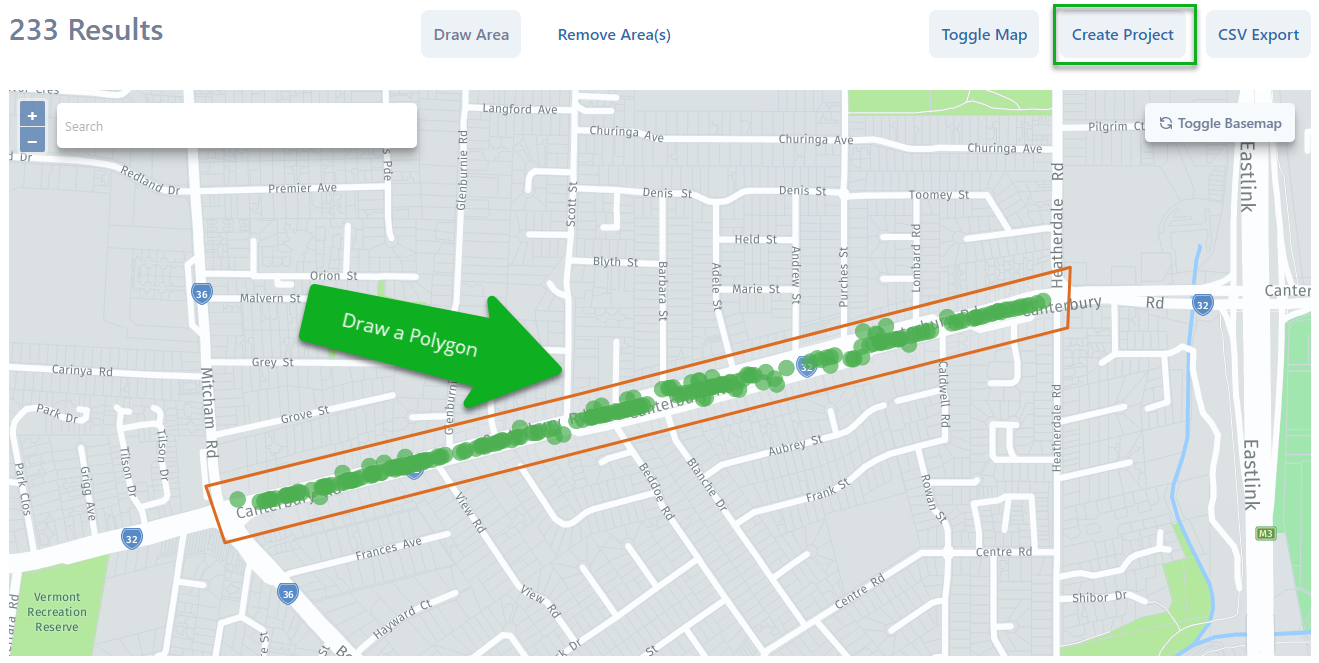
Once your happy with your Project Area, click the Create Project button above the map and select Works as the Project type.
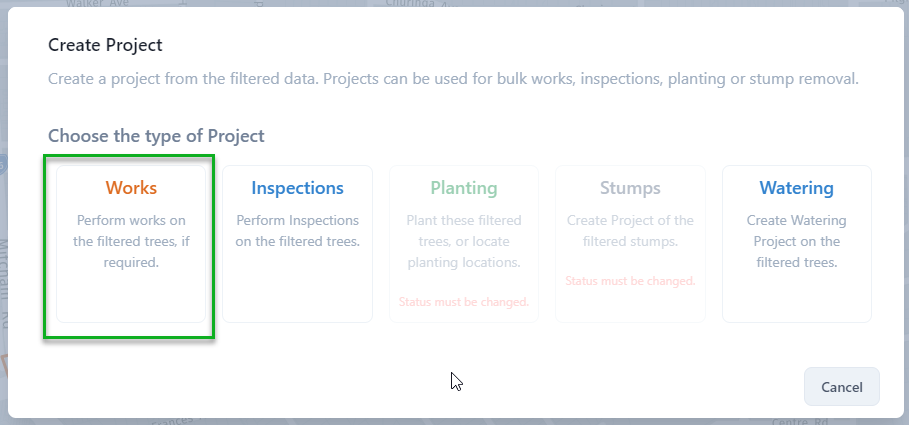
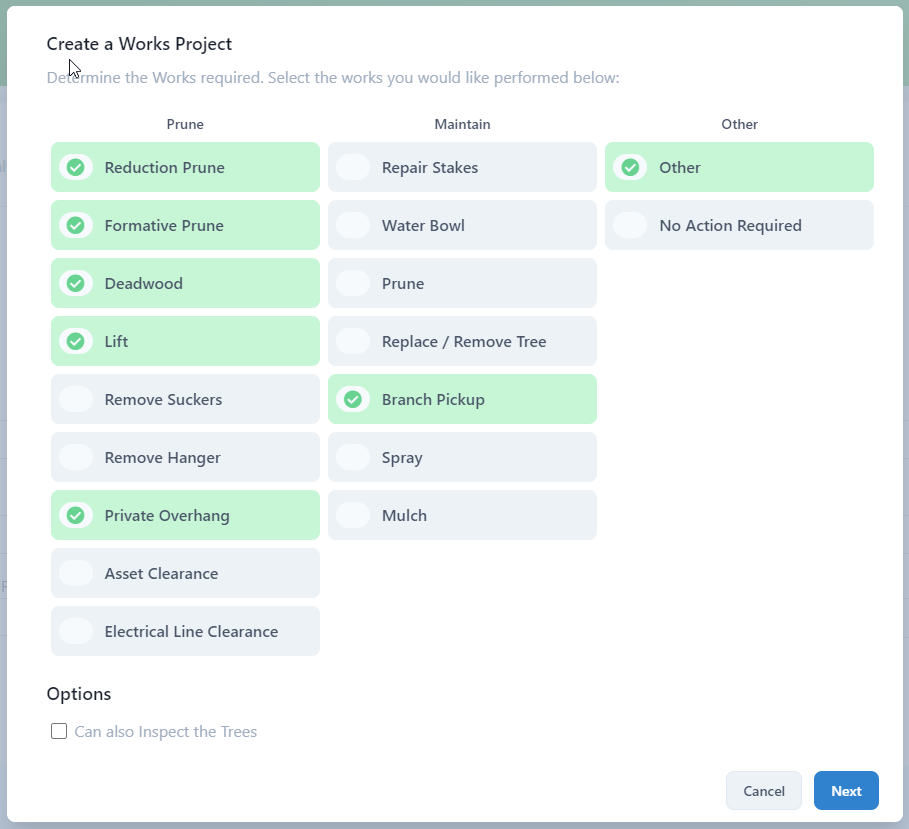
Next, select the Work Tasks you want completed on these trees:
Click Next, then enter a Projet Name and any notes, and click Create Project:
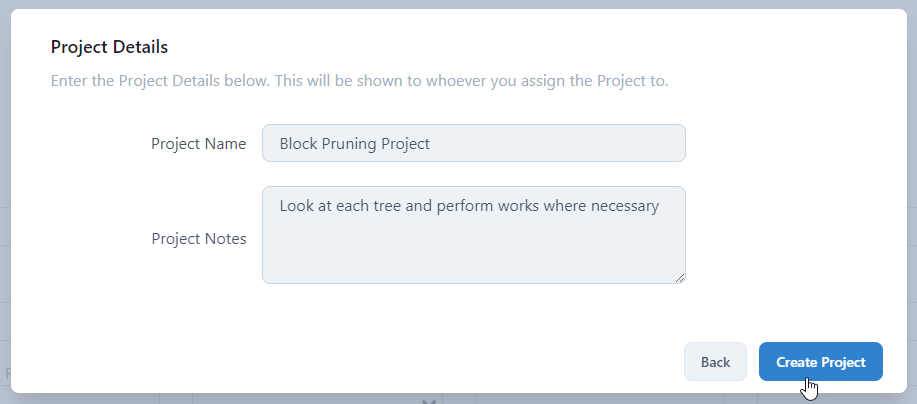
This will create a Proactive Works Project and will appear on the Projects page ready to be assigned.
The Proactive Works Map
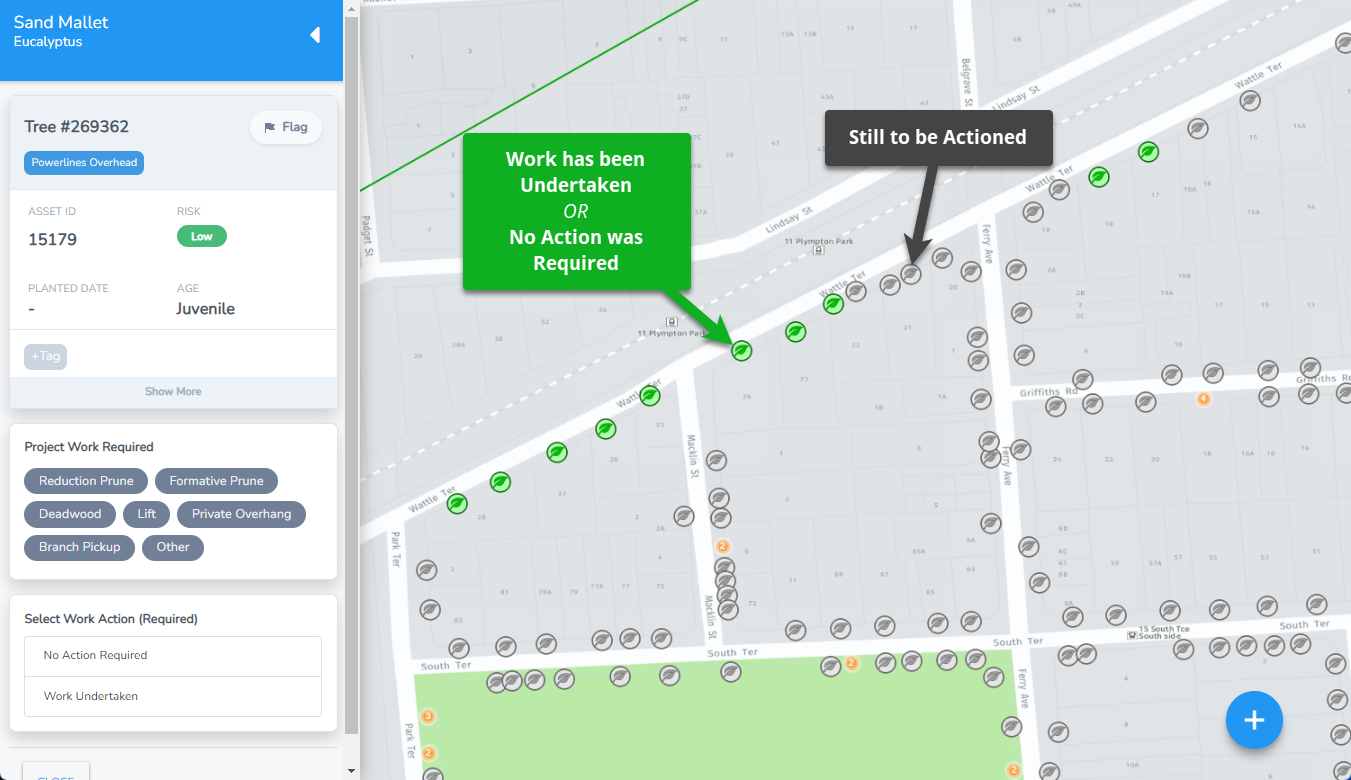
The map for a Proactive Works Project is fairly simple.
Trees will be represented intially as gray dots on the map. Click a dot to see that tree's attributes and specify is No Action is Required or if Works have been undertaken. If you choose Work Undertaken, you can then click each work task that was undertaken on that tree.
Once a tree has been actioned, the dot on the map will change to a green colour.
Progress of the Proactive Works Project can be viewed on the Projects page.
NOTE: Trees in this Project can be flagged for inspection using the Flag Tree button.