
Inspections Project
An Inspections Project lets you select trees through the Data Analyser or the Scheduled Inspections list and assign to a user or contractor to be inspected. A few examples for a Inspections Project are:
- Select all the trees within a selected suburb to be inspected for their 3 yearly inspection.
- Select all the HIGH and MEDIUM priority trees and assign to a contractor to be inspected.
- Select all trees planted 3 years ago to be inspected for health assessment.
Create an Inspections Project
Inspections Projects can be created through the the Data Analyser or the Scheduled Inspections list.
Method 1 - Data Analyser
Click on Reporting fromt the Dashboard, then click on Data Analyser.
Click the Toggle Map button to show the map, then click the Draw Area button to draw a polygon to define the project area. You can also use the dropdowns to filter the trees by any attribute you wish (e.g. Medium and High Risk).
Once you have drawn the project area and selected any filters you want, make sure you click the blue Apply Filter button so the trees filter to the area:
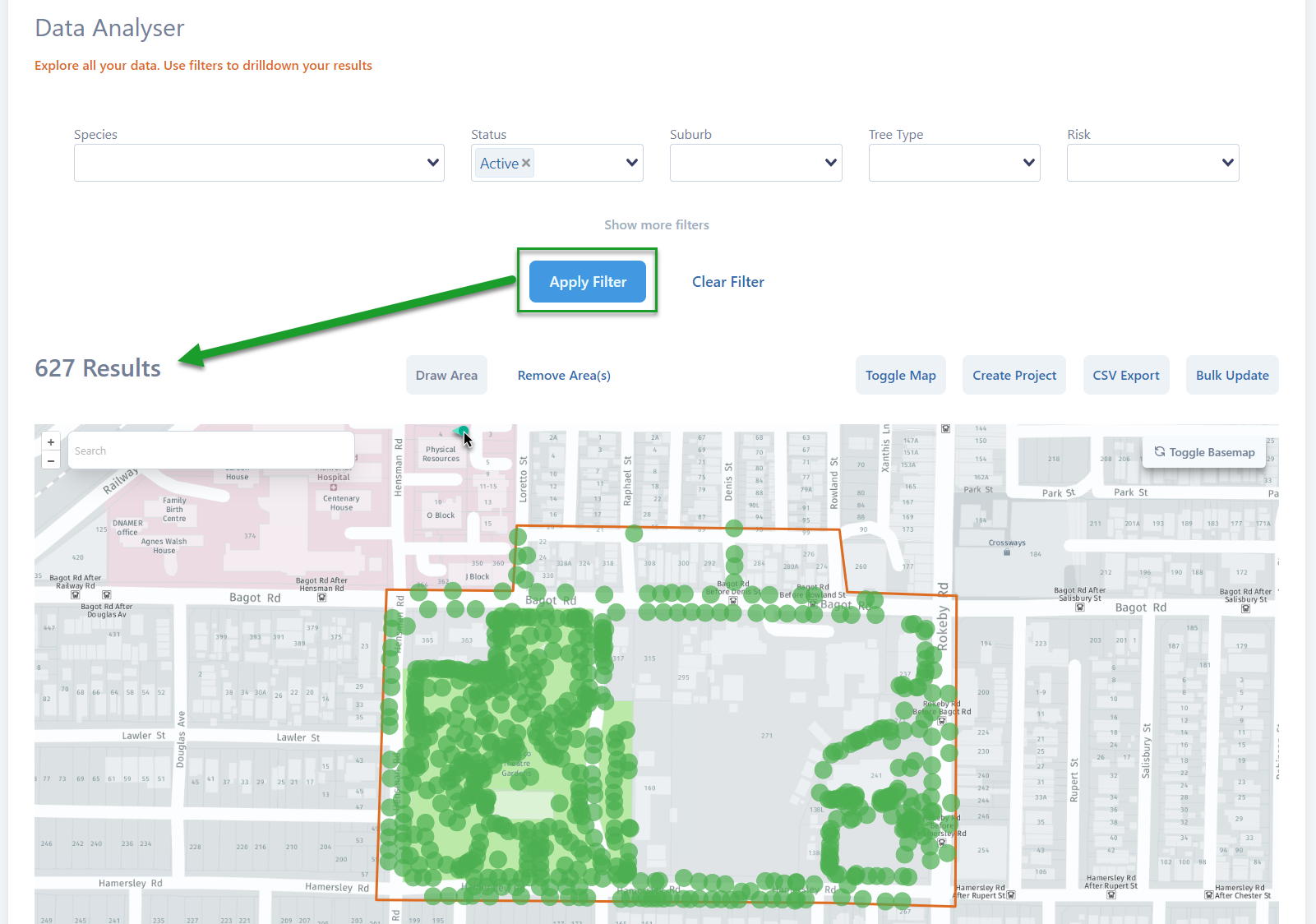
You can adjust the project area by clicking and draging the polygon from a corner or from any part of a straight line. Just be sure to click Apply Filter again after you adjust the polygon:
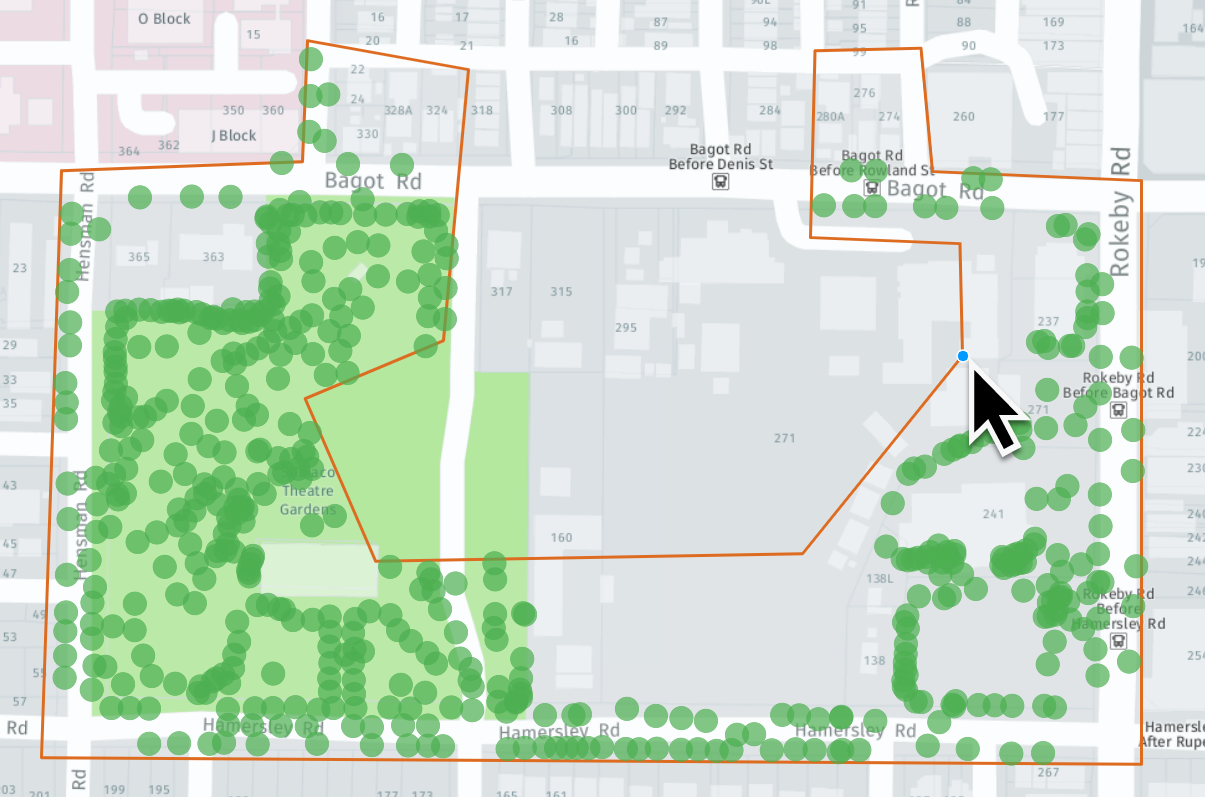
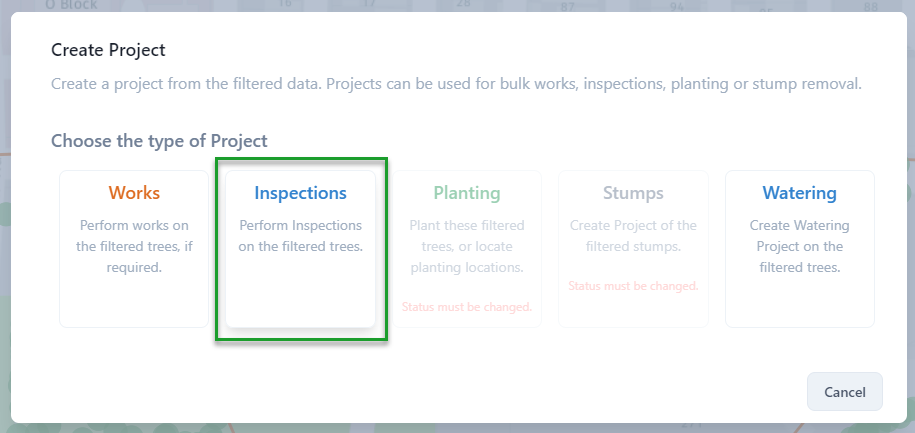
Once you're happy with the area, click the Create Project button and select Inspections Project:
Give the project a name and any notes, then click Create Project:
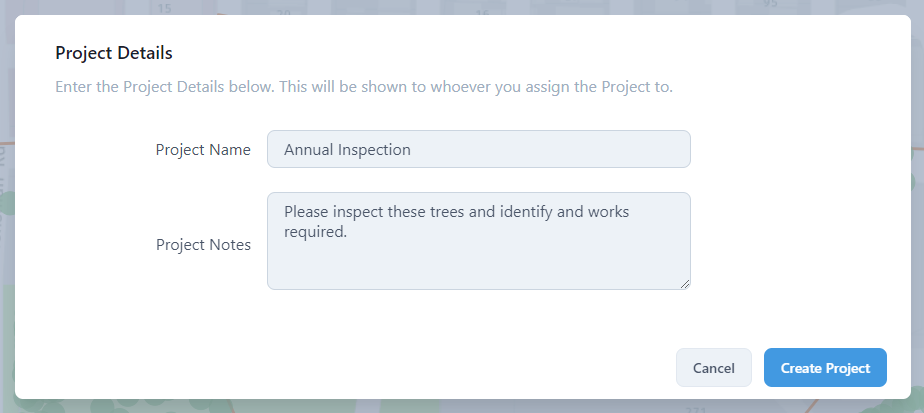
The Inspections Project will then appear on the Projects page ready to be assigned to a user or contractor.
Method 2 - Scheduled Inspections List
Click on the Inspections List from the Dashboard.