Data Analyser
Explore all of your data in your urban forest asset register with many options to filter, group, create project and export.
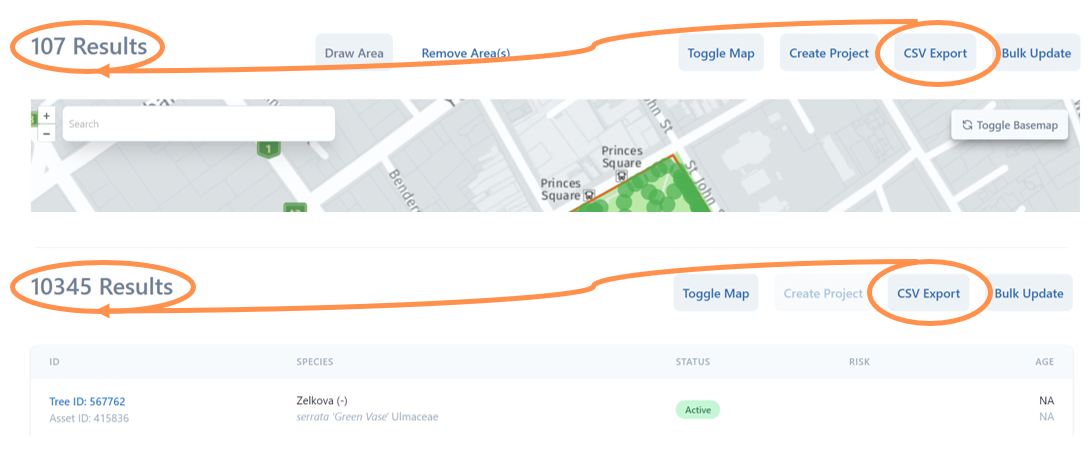
• Navigate to this reporting tool by selecting the Data Analyser tab at the top of the Reporting page.
• If your urban forest is large, it may take a few moments to load the list.
• The default is to show all active tree assets, in reverse alphabetical order of their species name. However there are a range of ways you can view and filter this data.
• If you select a Tree ID number, you will be automatically taken the Inspections Map, zoomed down to that tree with the left menu ready so you can review details, flag, inspect, create works or generate a full report on that asset.
Full Tree Report
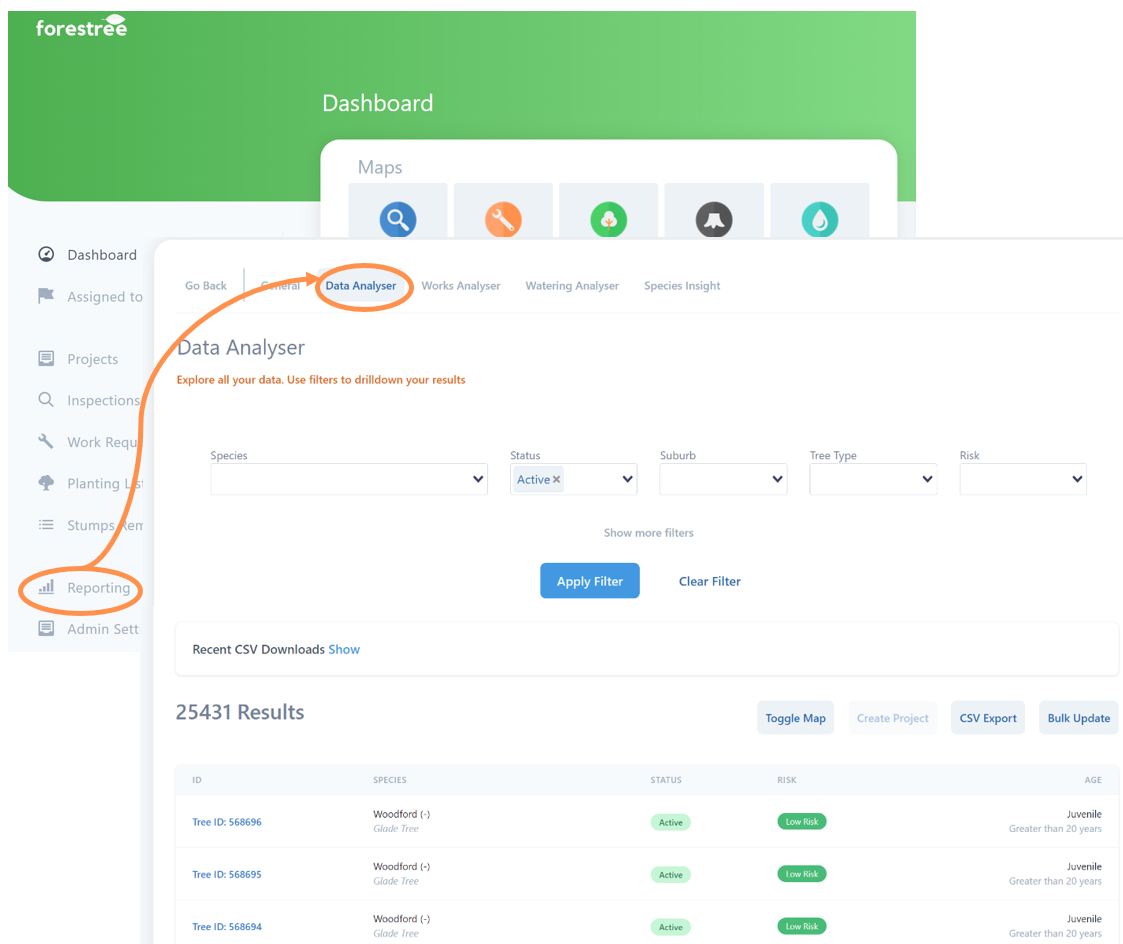
There is an inbuilt function for any tree asset to generate a full report.
• Select a Tree ID number, you will be automatically taken the Inspections Map, zoomed down to that tree with the left menu. Alternatively you can navigate to tree asset and select the leaf icon marker.
• Select Tree Report
• A new web page will open up with all current and past data entry available about your selected asset including inspections, works, watering and photos.
Filter Data by Attributes
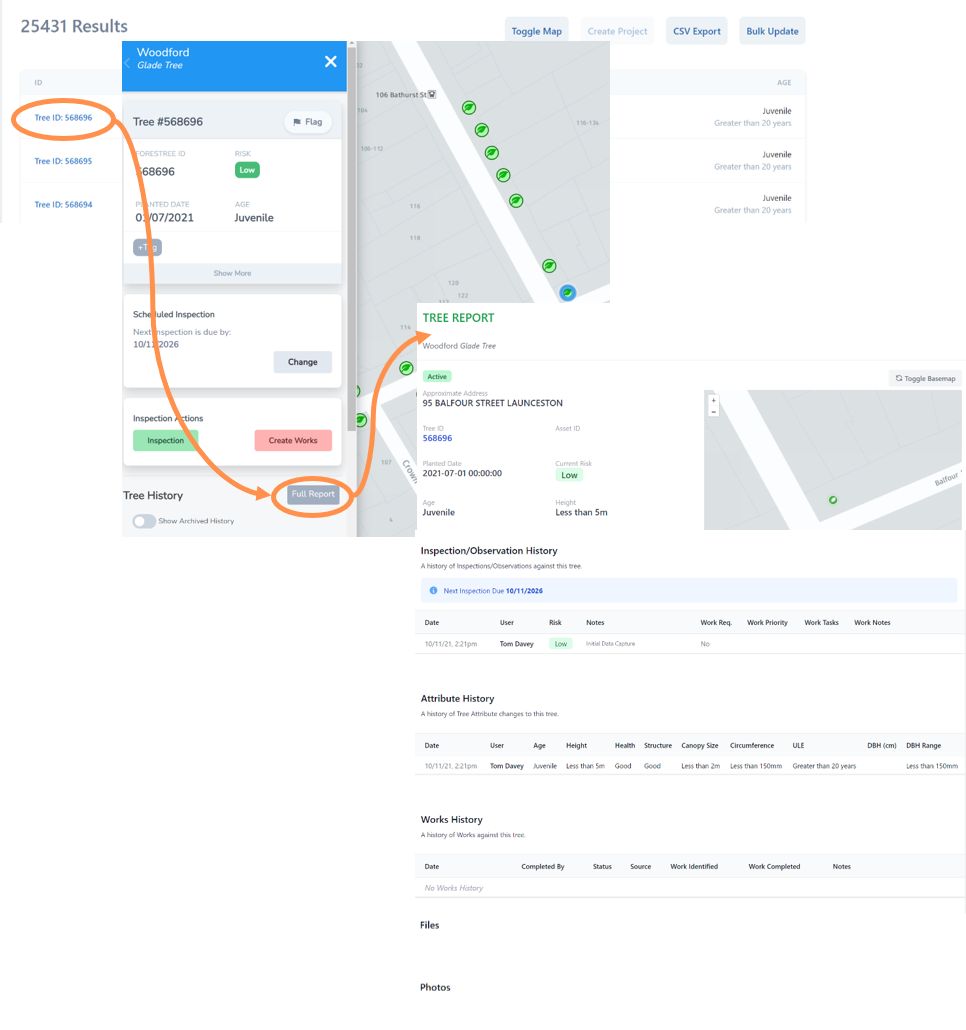
You can filter the list by a range of attributes. You can filter by one or more categories.
Select as many as you like from the drop down boxes in one or more of the following categories:
• Species
• Status (active trees, stumps, planting locations, removed tree locations) NOTE: The default status is to filter by active trees but you can change this.
• Suburb
• Tree type (eg park trees)
• Risk Level.
• Select the small “x” beside any selected filters to remove them at any point.
Once happy with your filter(s), select the Apply Filter button which will then filter the list. Select Clear Filter button at any point will revert back to the entire asset list.
In the example below the list will be filtered by all High and/or Extreme Risk tree assets that are Street Trees.
More Filters
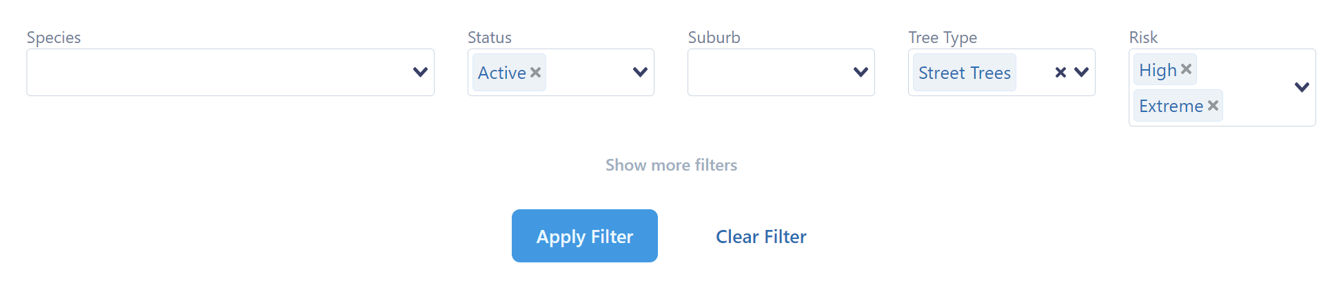
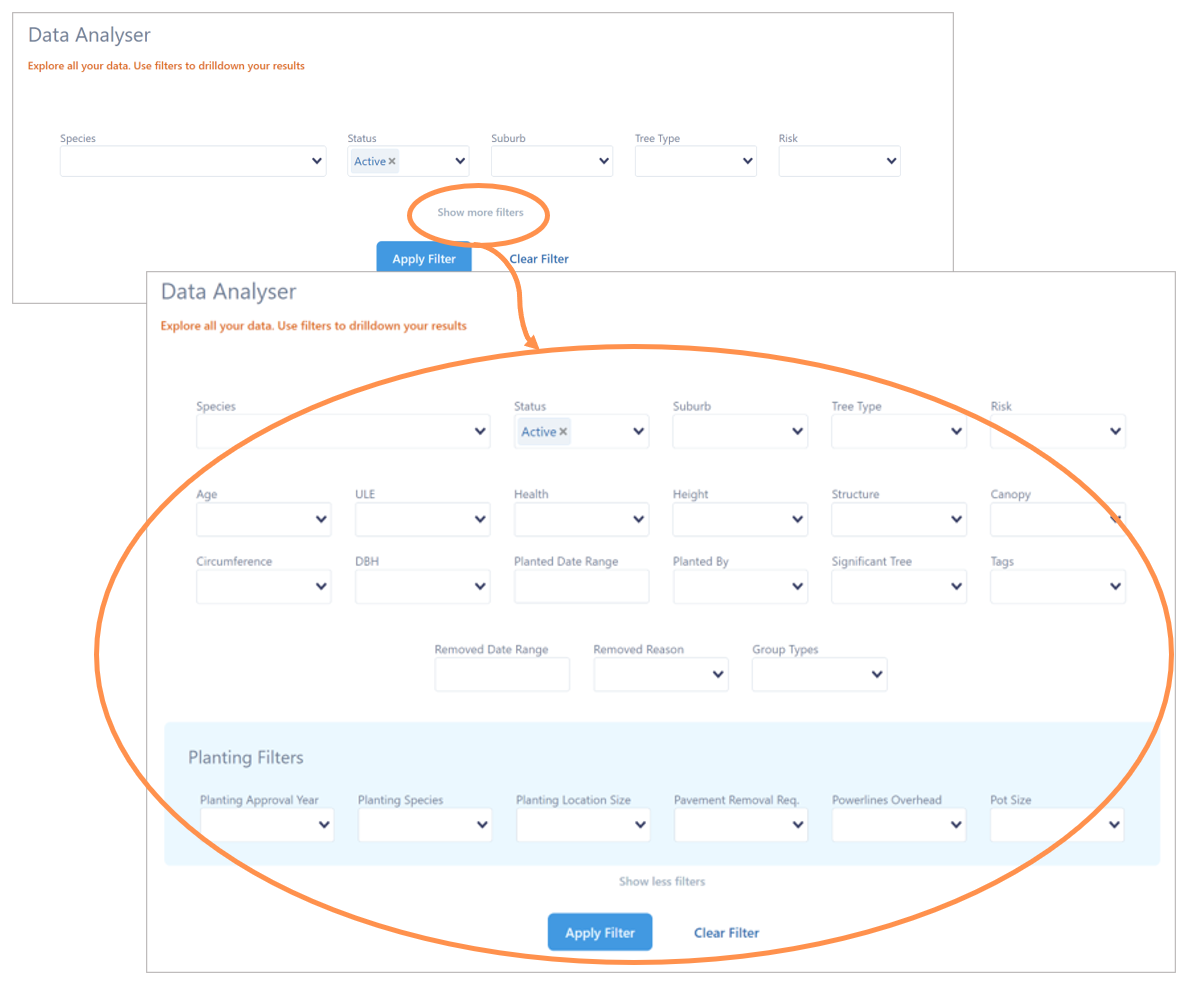
To keep the screen clutter free, only the most commonly used filter fields are visible.
However, with one click you can have access to ALL the filters to get fancy with your data sorting.
• Select Show more filters and the full suite of options will appear.
• Again, select as many as you like from as many categories to limit your list.
• Remember you must select the Apply Filter button for the list to update.
Filter by Area (Polygon)
While you can simply use the list format, there is also an inbuilt map function on the Reporting page.
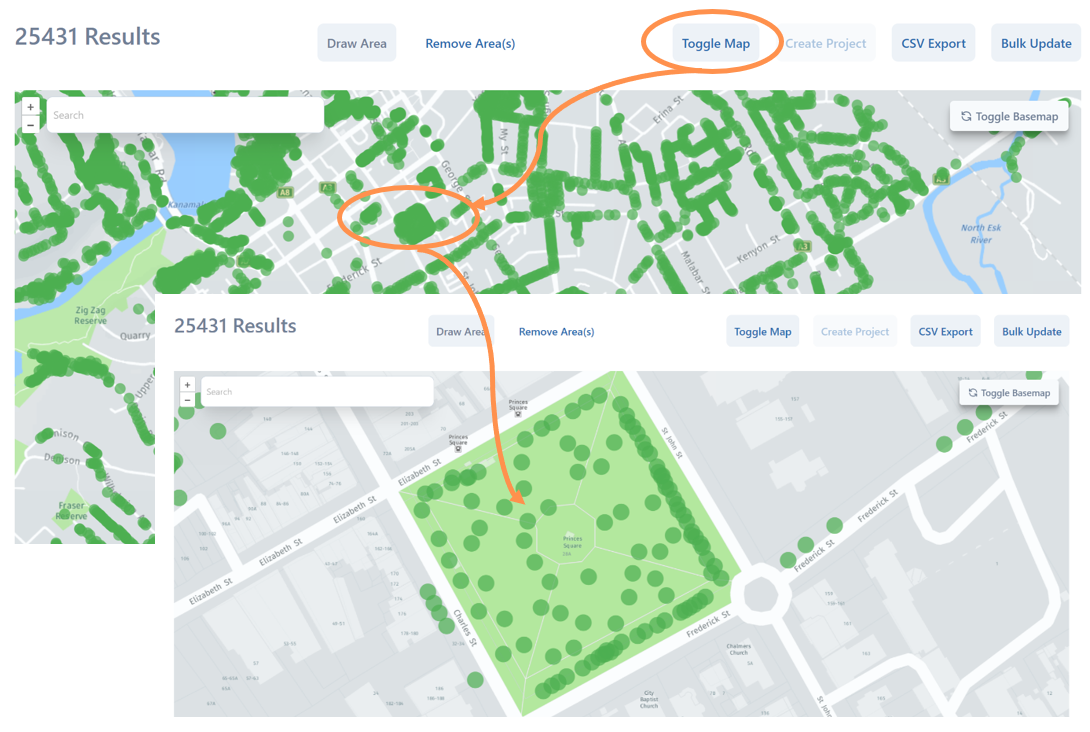
• Select the Toggle Map button and an embedded map will appear showing any data points (or filtered data points if you have applied one or more filters). The list is still visible just below the map.
• With this map feature on, you can use the search bar and/or zoom and drag down to a closer view like the example below.
• You can click on any of the green asset dots and the Tree ID number will appear.
• A second click and you will be taken to that asset point on the Inspections Map in a new browser.
Draw Area
In Toggle Map view you can draw a polygon area around a group of points to filter the list spatially rather than by categories.
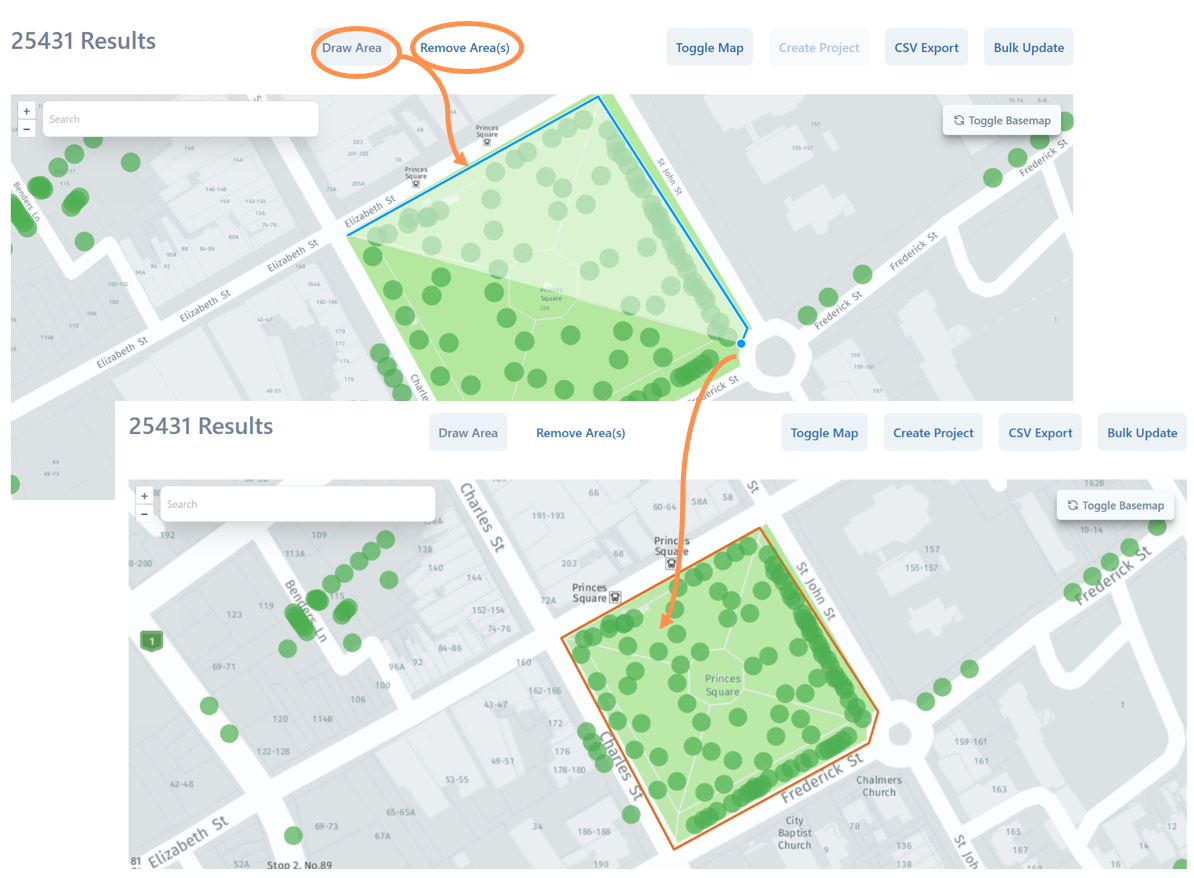
• Select the Draw Area button. Click on the map, drag to draw a line, click to mark a corner, drag to draw another line and so on. Double click when you are done and it will snap the polygon together.
• NOTE: At any point you can select Remove Area button to delete your polygon shape, so don’t be afraid to have a few attempts.
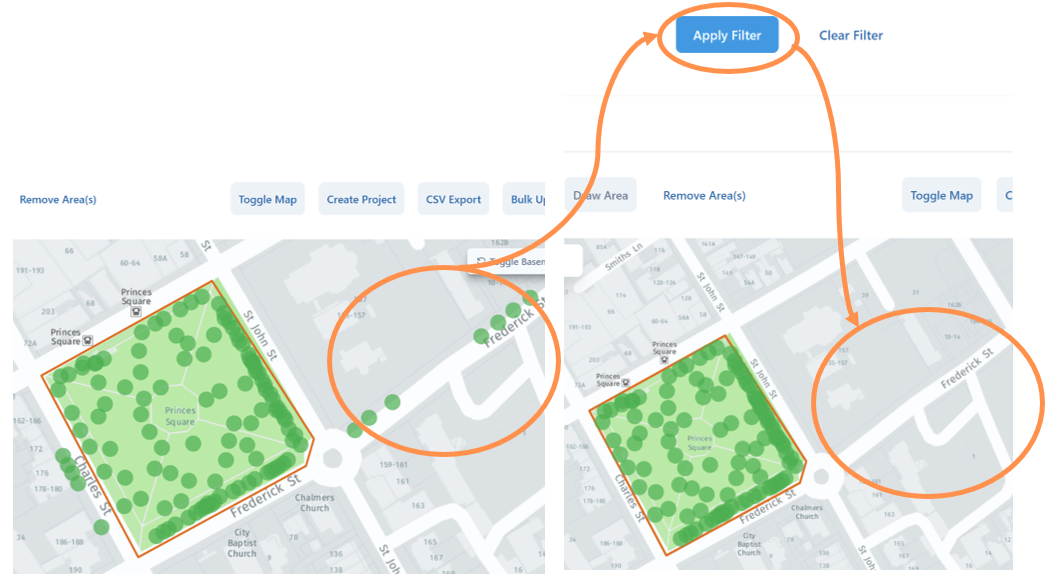
• You must hit the Apply Filter button before the map/list will filter any points within the polygon drawn area to be selected.
• Depending on your device, you may have to scroll up the page to view and select the Apply Filter button.
In the example below, you can see a polygon area has been drawn around the park reserve, but there are still tree assets outside the drawn area. Once the Apply Filter button is applied, only those assets within the polygon are now selected on the map.
Bulk Update
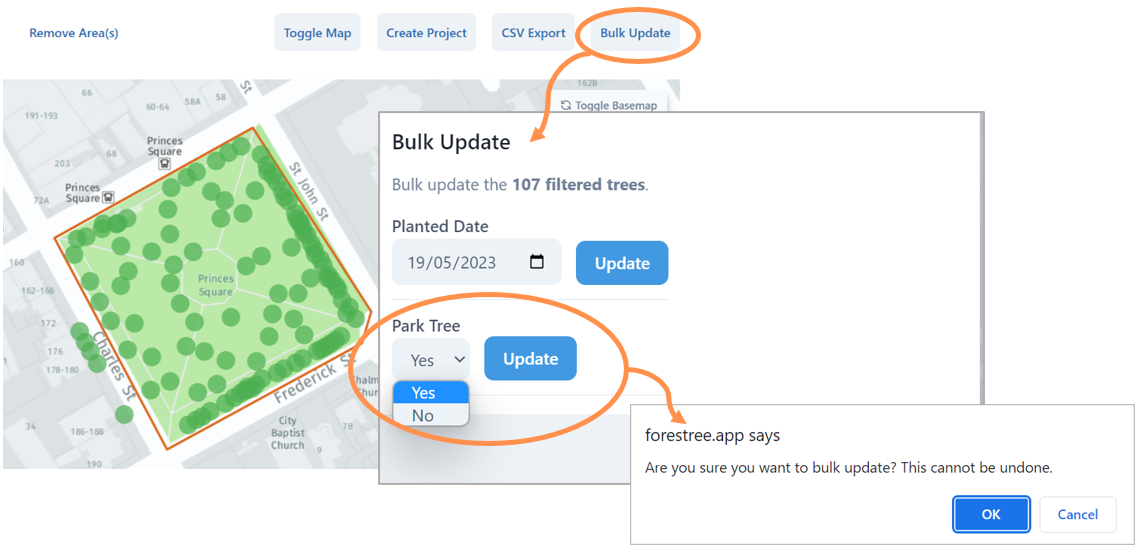
Once you have a completed drawn area and applied the filter, you can apply a bulk update to the selected points. .
• Use the Bulk Update button to group assign the selected assets (in the example below, all the points can be marked as park trees in bulk).
• This step can’t be undone, so Forestree will give you a confirmation step.
Create a Project
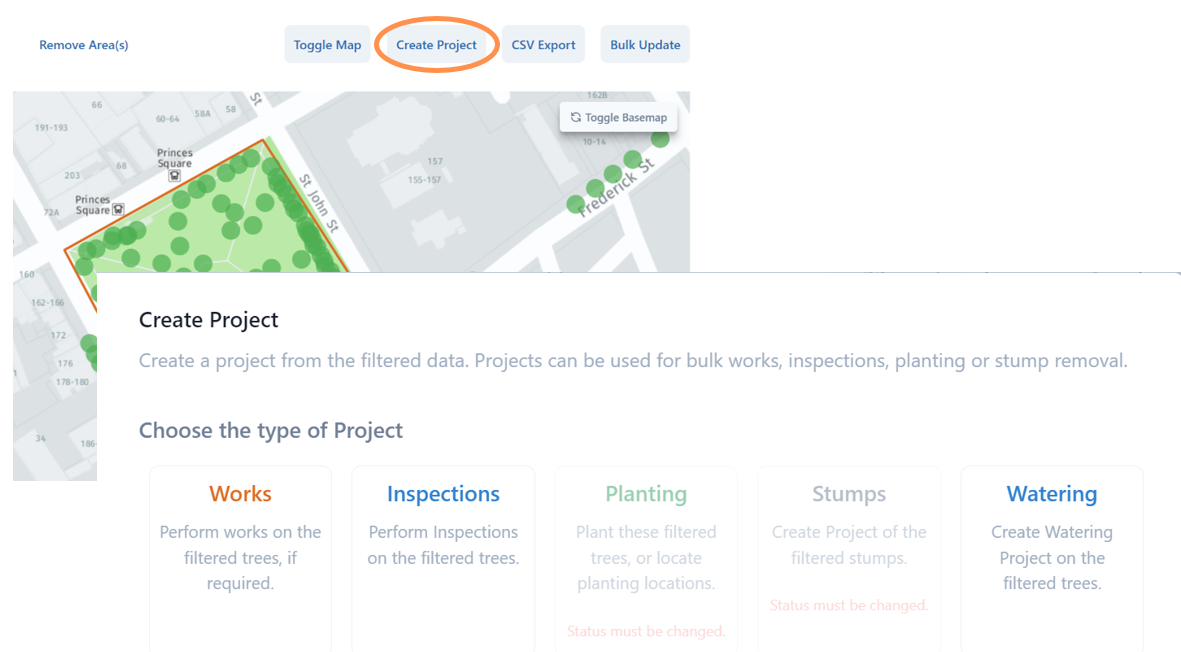
Once you have a completed drawn area and applied the filter, you can create a project specific to the selected points. .
• Use the Create Project button to group assign the selected assets to a new project.
• You will then get the option to create a Works, Inspections, Planting, Stumps or Watering bulk project.
• Depending on which item you pick you will then be taken to the corresponding create project form steps, bringing the collected data points with it.
• Refer to the Works Project user guide for the next steps on this project tool.
NOTE: In the example below you can not select planting or stumps as the selected points are existing trees.
Export Results to CSV
• On the reporting (and many of the list pages) you have the option to export the data to an excel csv file. This option appears above standard lists or with the toggle map function on.
• Select the CSV button on any of these pages and an excel file in csv format will automatically download including the all the results currently filtered.
• You can now open this file to use the exported data in excel.
Examples below show the CSV export button option above both toggle map and list views that will export current total number of asset results indicated.