Works Analyser
Explore all of your completed Works, Inspection and Data Collected information in your urban forest asset register with many options to filter, group and export.
NOTE: This is not the page to create works or projects, just view and sort records. If you are looking to create works or projects use the Works Map, Works Required List or Data Analyser.
• Navigate to this reporting tool by selecting the Works Analyser tab at the top of the Reporting page.
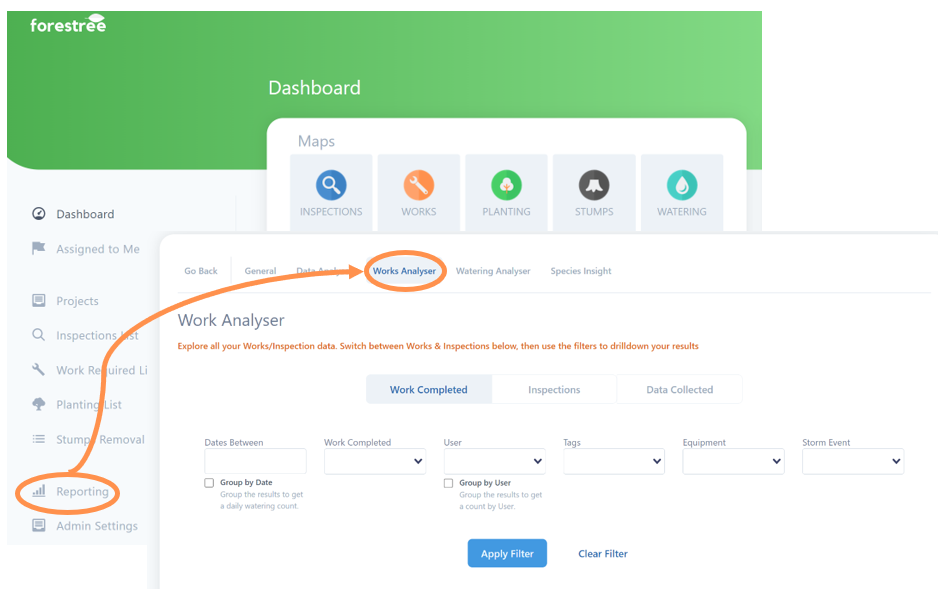
Work Completed
The default view on the Works Analyser is Work Completed search tool. Here you view all past completed works and use filters and/or the map to drill down your results.
If you are diligent with your data entry, you can use this tool to quickly answer questions such as:
• How many stumps were removed by “contractor” last month? – Does it match this invoice?
• How many trees were removed last year?
• How many trees were pruned in the last quarter?
• How many works tasks did “staff” complete last week?
• How many additional work tasks were completed due to storm events over the last 2 years?
Filter Work Completed
You can filter the work completed dataset by a range of attributes. You can filter by one or more categories.
Select as many as you like from the drop down boxes in one or more of the following categories:
1. Dates Between (you will be provided with calendar drop downs to select a start and end date of your search timeframe)
2. Work Completed (filter to one or more work task type, eg lift, remove suckers, overhang prune)
3. User (filter to one or more staff or contractors)
4. Tags (if you are using tags you could filter to any works completed with a unique tag group such as wildlife boxes)
5. Equipment (find out if one or more chipper is being used more).
6. Storm event (limit the search to storm events, or remove any works due to storm events as depending on your search this could skew your “normal” works completed levels).
7. Once happy with your filter(s), select the Apply Filter button which will then filter the results.
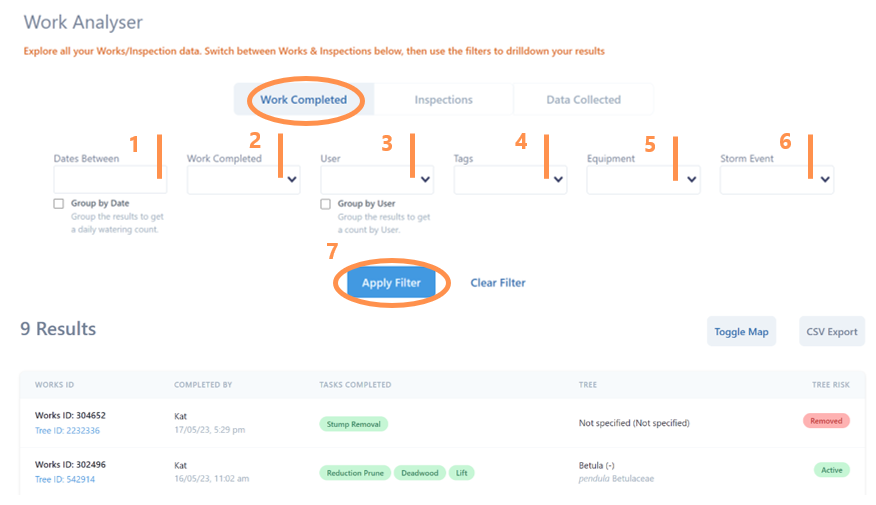
Depending on your reporting needs, you may be happy with the tally number of results, or you have options to export a CSV file and/or select on any of the Tree ID numbers to see more detail.
You also have the option to Toggle Map to view the results spatially. From the embedded map you can Draw an Area to filter results (for example you may want to draw an area over one street or zone that a team works in to see amount of works completed). Please refer to how to draw area from the Data Analyser section.
Inspections
Use this data set to review and filter completed inspections. Navigate to this section by selecting the Inspections Tab on the Works Analyser page.
If you are diligent with your data entry, you can use this tool to answer questions such as:
• How many inspections were completed by “contractor” last month? – Does it match this invoice?
• How many trees were inspected last year?
• How many inspections in last year identified need for pruning?
You can filter the inspections dataset by a range of attributes. You can filter by one or more categories.
Select as many as you like from the drop down boxes in one or more of the following categories:
1. Dates Between (you will be provided with calendar drop downs to select a start and end date of your search timeframe)
2. Work Required (filter to one or more work task type identified in the inspection)
3. Inspector (filter to one or more staff or contractors)
4. Once happy with your filter(s), select the Apply Filter button which will then filter the results.
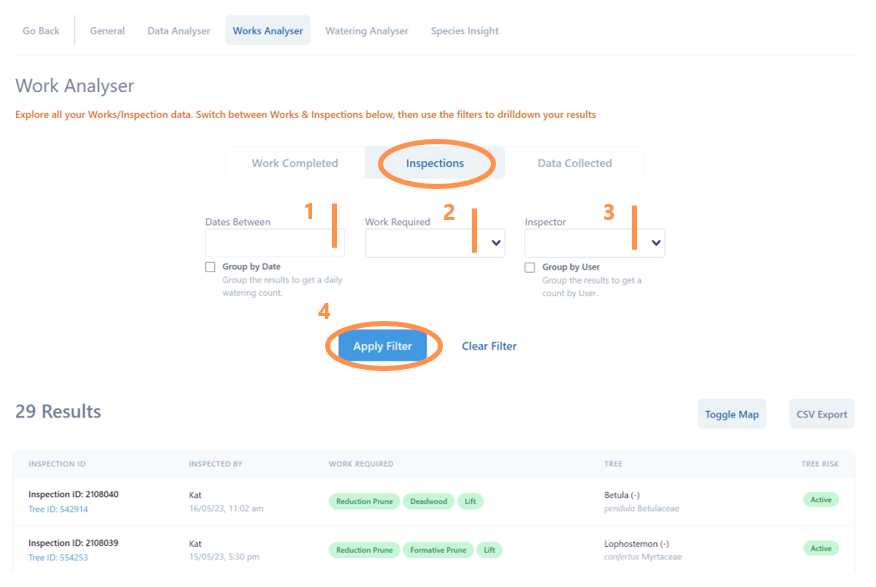
Depending on your reporting needs, you may be happy with the tally number of results, or you have options to export a CSV file and/or select on any of the Tree ID numbers to see more detail.
You also have the option to Toggle Map to view the results spatially. From the embedded map you can Draw an Area to filter results. Please refer to how to draw area from the Data Analyser section.
Data Collected
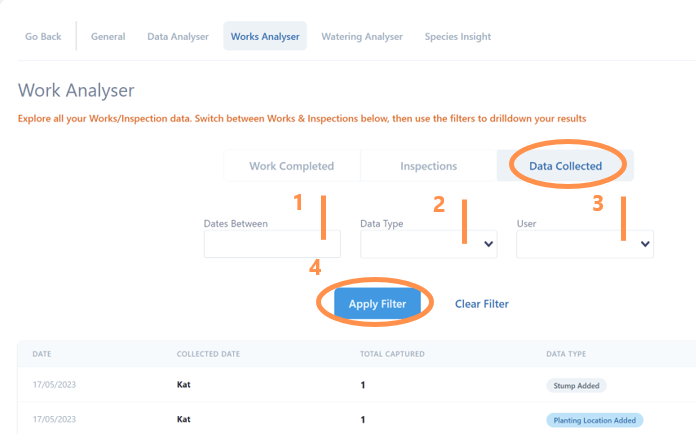
Use this data set to review and filter completed data entry work. Navigate to this section by selecting the Data Collected tab on the Works Analyser page.
You can filter the Data Collected section by a range of attributes. You can filter by one or more categories.
Select as many as you like from the drop down boxes in one or more of the following categories:
1. Dates Between (you will be provided with calendar drop downs to select a start and end date of your search timeframe)
2. Data Type (stump added, tree added, new planting location added etc)
3. User (filter to one or more staff or contractors)
4. Once happy with your filter(s), select the Apply Filter button which will then filter the results.