Users
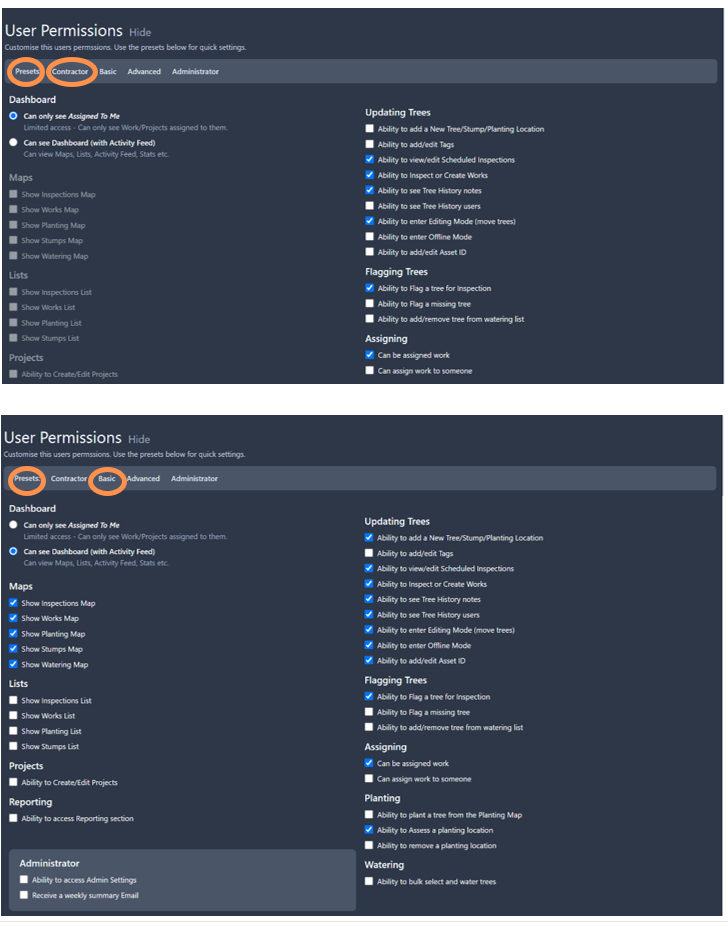
Explore all of your users (including staff and contractors), add, remove or edit permissions.
• Navigate to this tool by selecting the Users tab at the top of the Admin Settingspage.
• The default is to show all users in alphabetical order based on first names.
• Colour coding next to the user names makes it easy at a glance to see your basic users, advance, admin and external contractors.
• If you select a existing user, you will have their current details appear in a field box that you can edit and save amendments or select remove user.
Add a New User
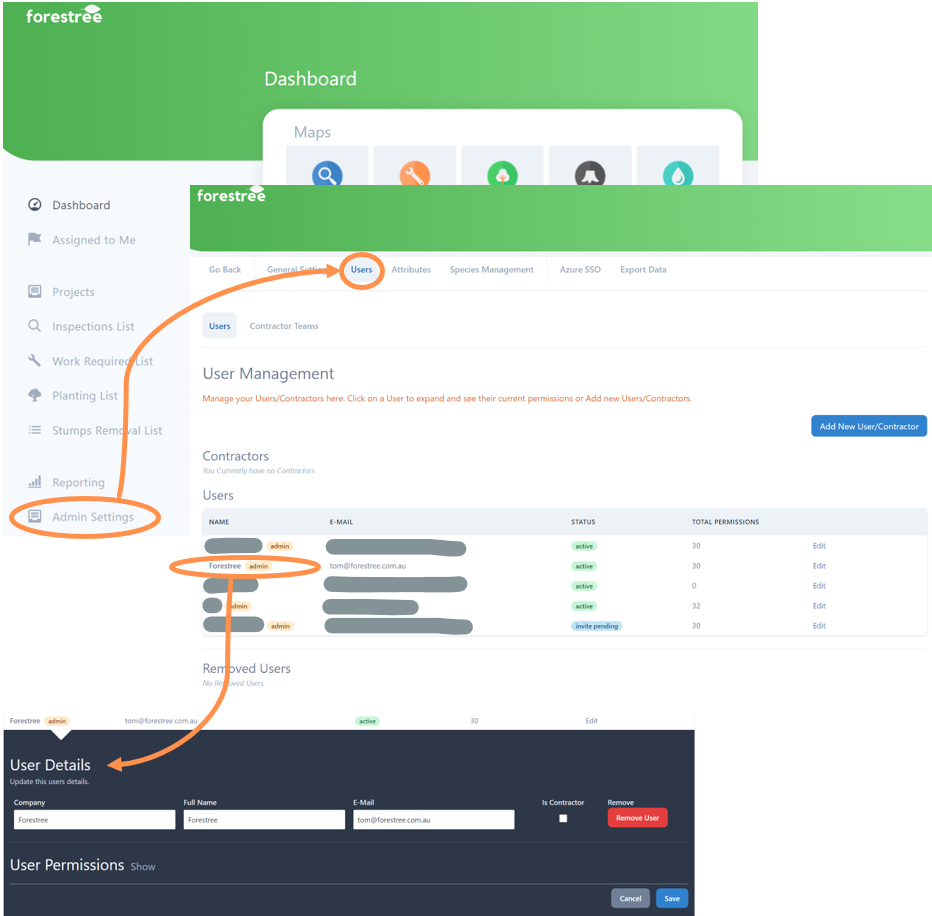
• On the Users tab, select the Add New User/Contractor button on the top right of screen.
• A drop down menu will appear
• Complete the company name, user name and email address of the new user
• Select the “Is Contractor” tick box if relevant. This will change how the user is categorised and standard permissions provided.
• Select Invite User button
An email will be automatically be sent to the new user, inviting them to sign into Forestree and providing initial access. The user will appear as “Invite Pending” on your user list until they login, then the status will change to “active”.
User Permissions
Change current permissions for your users and contractors as required. We even have inbuilt template settings called presets to make this feature really fast.
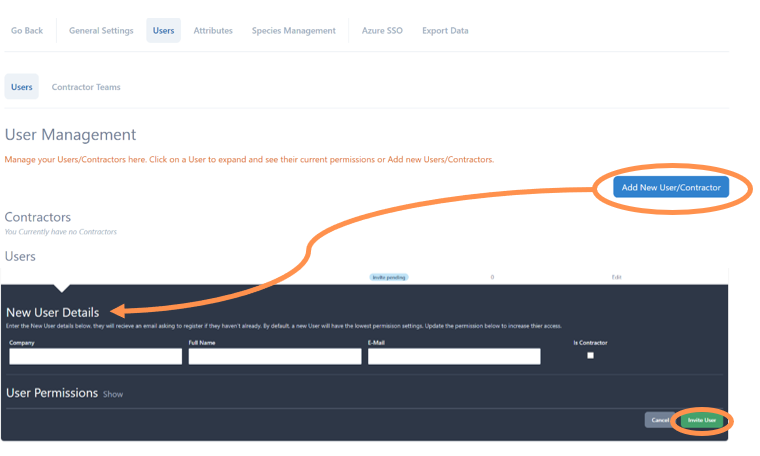
• Access permissions on the Users tab, either select an existing user or when selecting the Add New User/Contractor button on the top right of screen.
• Select the word “show” next to title User Permissions.
• A drop down menu will appear
• Review the options and select the relevant permissions. A blue tick represents a permission the user has access to.
• Select Save (if editing an existing users permissions) or Invite User if setting up new user to save the settings selected.
Presets
We have developed template settings for the four most common user types and permssions profile they need.
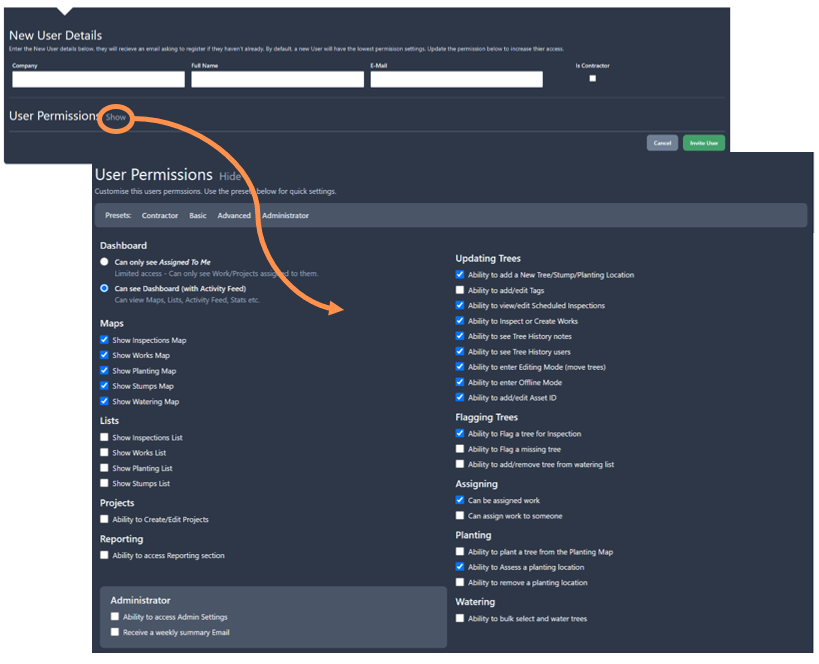
Contractor - ideal for external contractors to have access tasking information and to input work data directly, while limiting complete access to all your asset register and/or the work being completed by other contractors.
Basic - great for most staff, administration officers, planning officers etc that can look up the asset information and request work.
Advanced - suitable for team leaders, leading hands, asset managers and anyone else that is likely to be doing detailed work with the tool such as planning, tasking, monitoring and analysis.
Administration - suitable for a small number of staff that can change background settings and user access, typically senior arborist, asset manager and someone from your IT team.
• To apply a preset, simply click on the relevant present user type under the heading User Permissions
• You can then further tailor the settings before saving changes.
Examples below show standard settings for a contractor and basic user presets.