Attributes
Attributes section allows you to customise settings and underlying data sets that form the drop down box options across Forestree. For example what your standard tree height size bracket drop down options are when adding a new tree. Or what equipment or watering trucks in your fleet you can allocate. This way you can tailor your asset register to suit your unique system.
Add/Edit Tree Attributes
• Navigate to this tool by selecting the Attributes tab at the top of the Admin Settingspage.
• The default is to show the Add/Edit Tree Attributes options.
• Select the drop down box under Select Attribute and choose the one you want to review and/or edit.
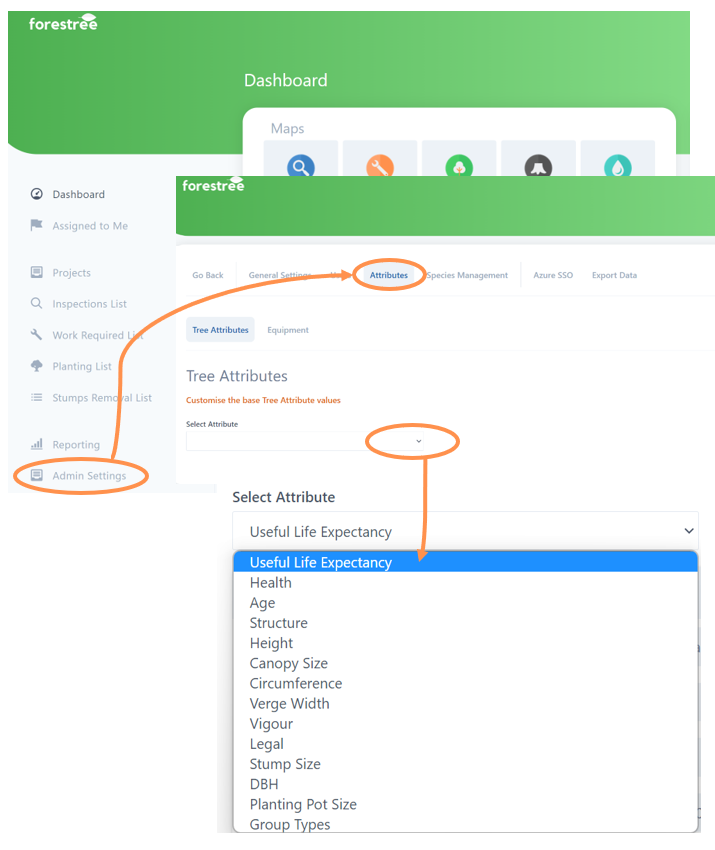
A new window will now open displaying the current options and values for that attribute
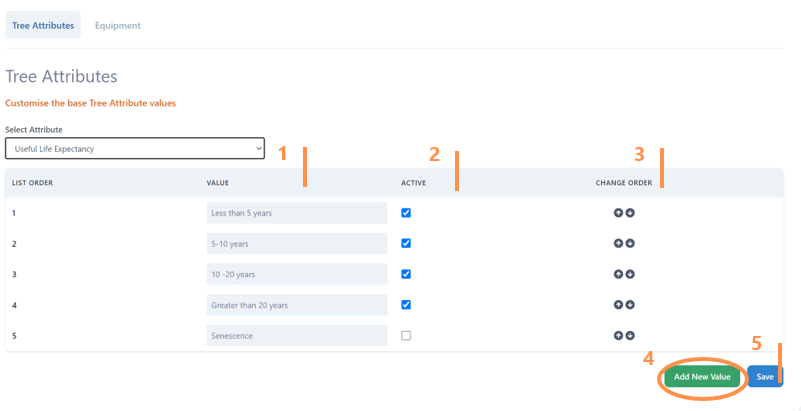
The example below is for Useful Life Expectancy, but it is same layout and concept for the other attributes.
1. The current values allocated to the attribute. To change these simply overwrite in the text box.
2. A blue tick box means this value is active for users to select in Forestree. A blank box it is not. In this example senescence is not an available option. To change this simple click the check box.
3. Use the up and down arrows to change the order of the values list. The order is how it will appear in the drop down box in Forestree forms.
4. Select the Add New Value button and a new value will appear that you can type detail into.
5. Once completed, press save.
Add/Edit Equipment Required
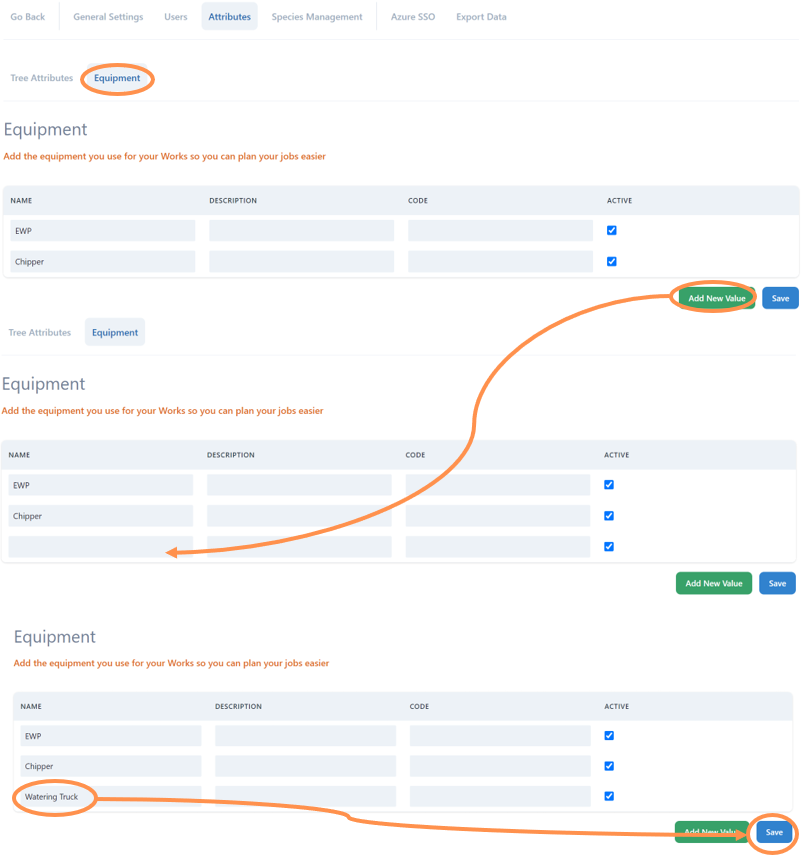
• Navigate to this tool by selecting the Equipment tab at the top of the Attributespage.
• You should see a list of your currently entered equipment.
• There are spaces for Name, Description (eg size or brand of equipment) and Code(eg asset number or registration number). All except the name are option and can be helpful depending on the size of your organisation to fill out.
• To update the information, type (or overwrite) into the relevant text box and then select save.
• Select the Add New Value button and a new equipment line will appear that you can type detail into.
• Once completed, press save.
Below is an extremely basic equipment detail example. We recommend putting in more details.