Export Data
Want to extract your data to do further analysis?
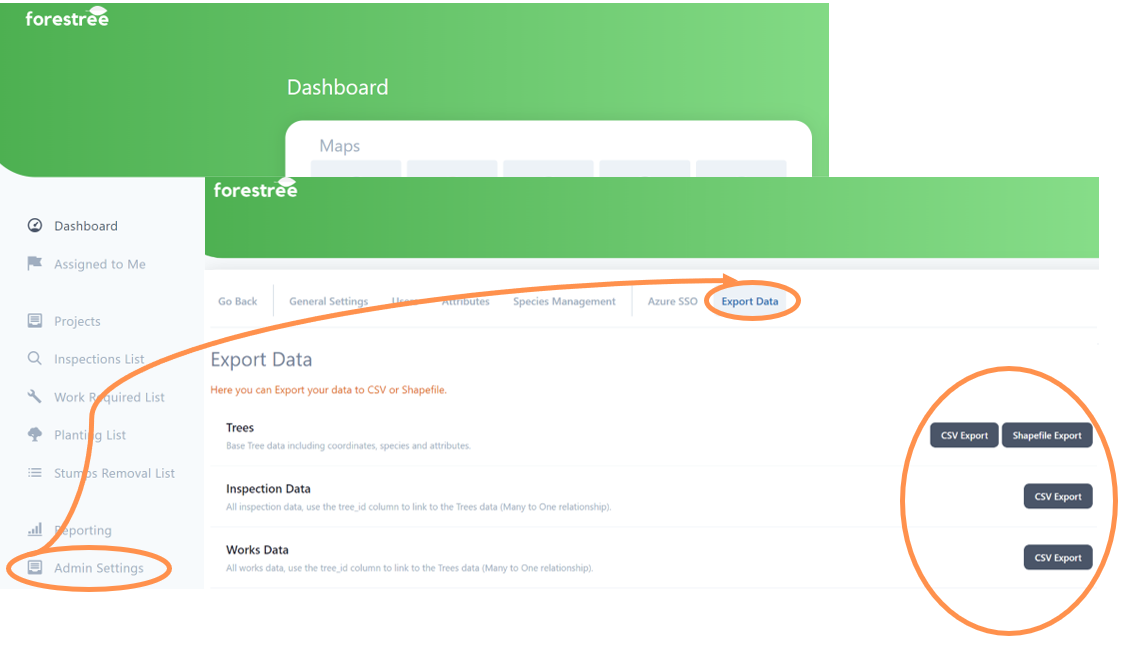
Within Admin Settings
• Navigate to this tool by selecting the Export Data tab at the top of the Admin Settings page.
• Select the CSV button against any of these categories to access an excel file in csv format will automatically download.
• You can now open this file to use the exported data in excel.
• Select the Shapefile Export for trees and a shapefile of your tree assets will automatically download.
• You can now open this file to use the exported data in your preferred spatial software program.
Within Reporting and List Tools
You can also export data directly from the specific reporting and list pages within Forestree
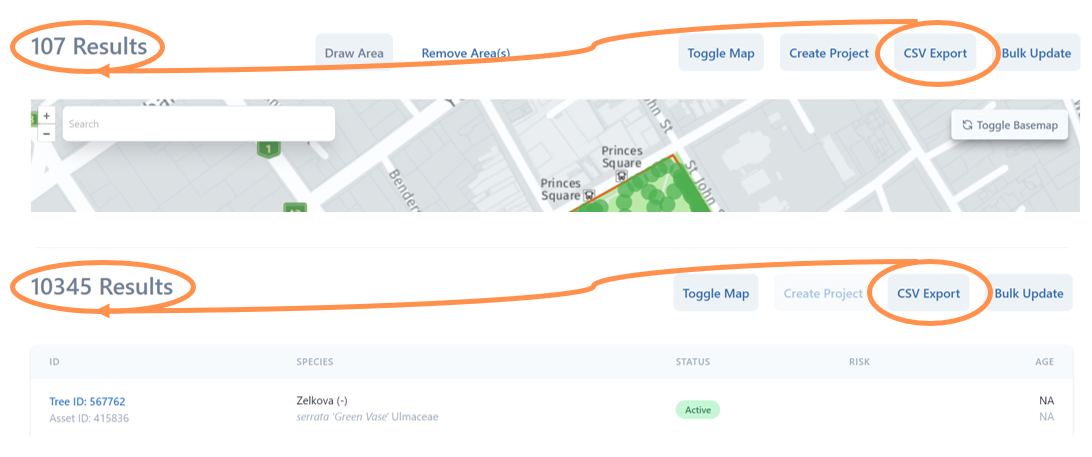
• On the reporting (and many of the list pages) you have the option to export the data to an excel csv file. This option appears above standard lists or with the toggle map function on.
• Select the CSV button on any of these pages and an excel file in csv format will automatically download including the all the results currently filtered.
• You can now open this file to use the exported data in excel.
Examples below show the CSV export button option above both toggle map and list views that will export current total number of asset results indicated.