
Volunteer Overview
Volunteer Projects in Forestree
Volunteer projects let people complete limited inspections and works without creating a Forestree account. The feature is off by default and must be enabled on your instance by support.
Requirements
- Volunteer projects enabled on your Forestree instance (contact support)
- At least one active pest or disease, if the project is a pest and disease inspection
- An inspection form that includes pest and disease fields (when creating that type of project)
Create an inspection form
- Go to Admin Settings → Attributes → Forms.
- Add a new form.
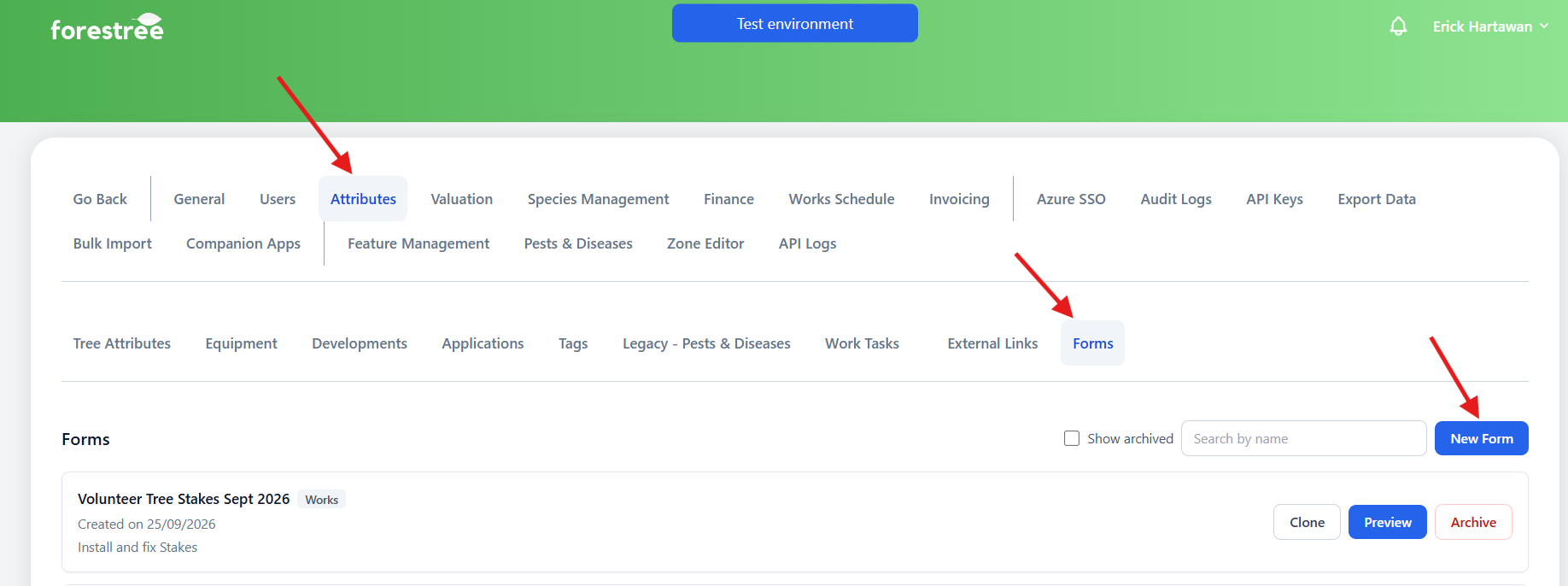
- Enter a name and Set the type to Inspection.

- Add the fields you need, including pest and disease fields if volunteers will record that information.

Create a pest and disease volunteer project
- Go to Reporting → Pests and Diseases Analyser
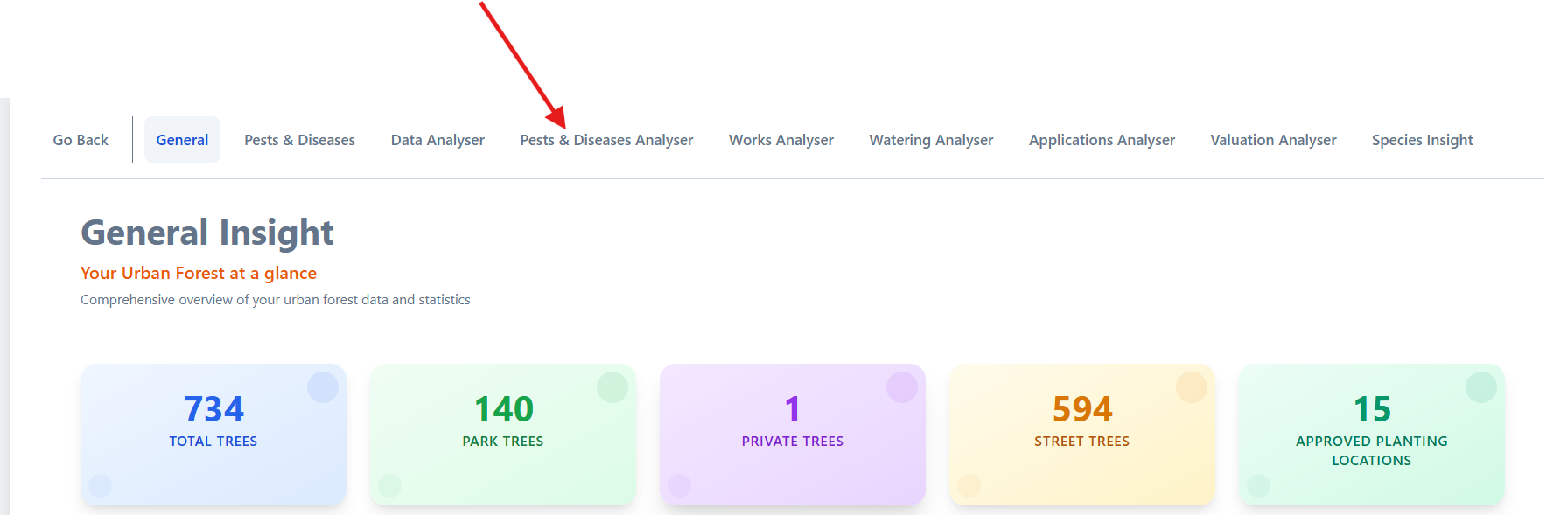
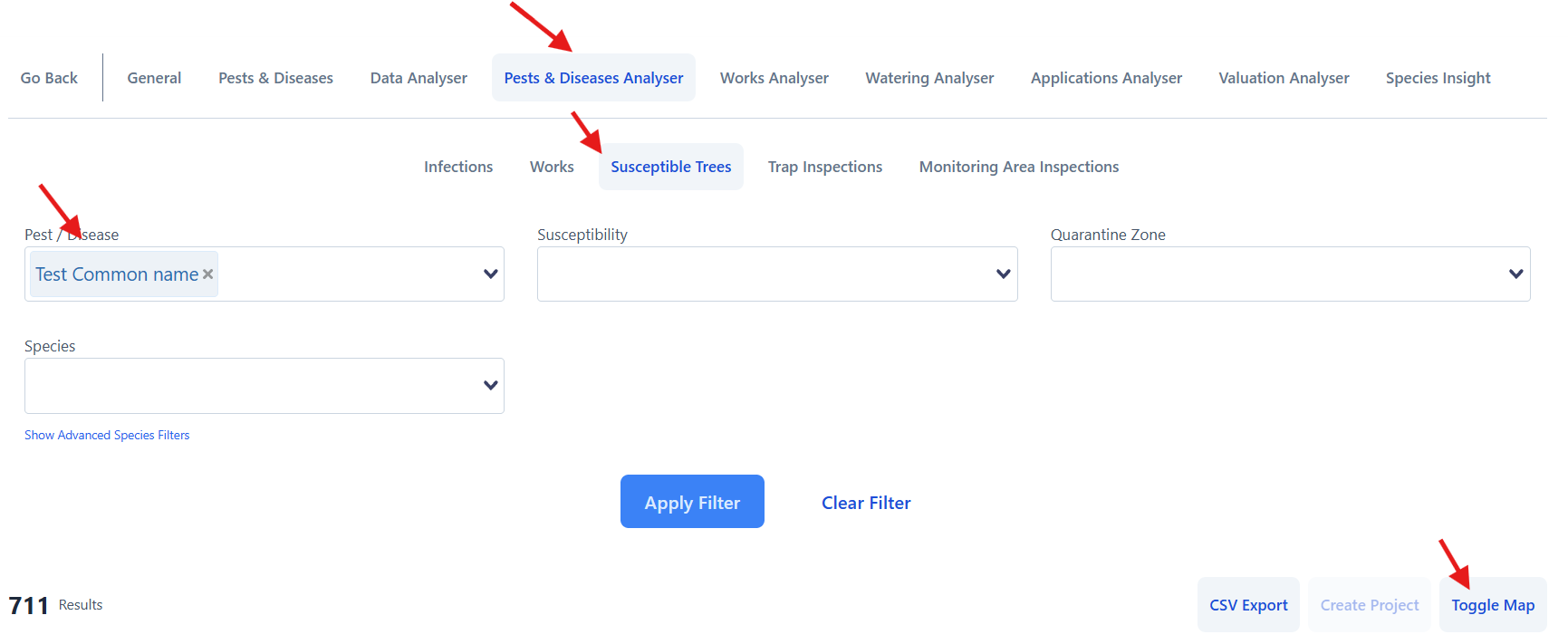
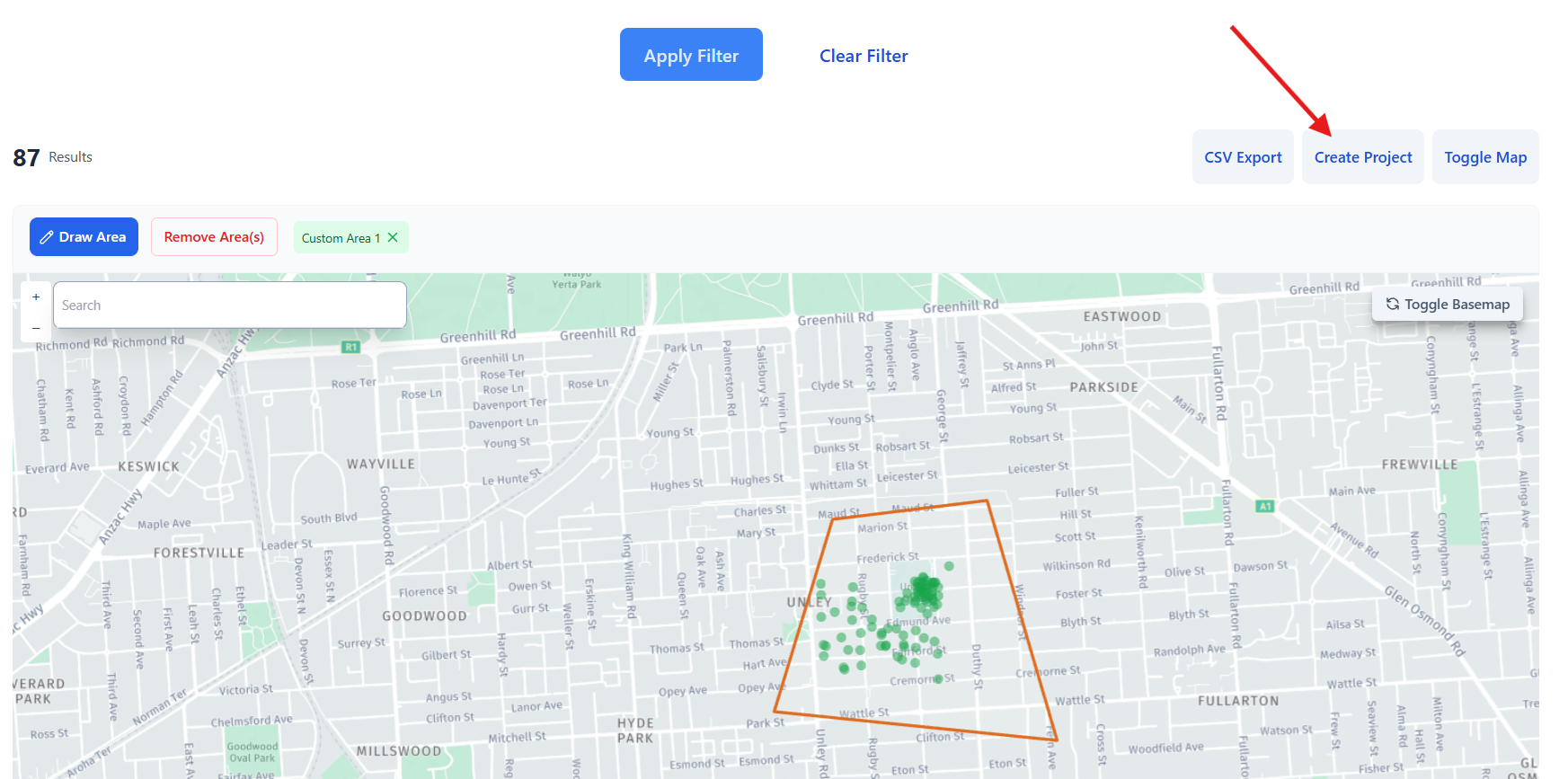
- Open Susceptible Trees, choose a pest or disease from the first selector, click Toggle map.
- Draw the area, then click Apply filter.
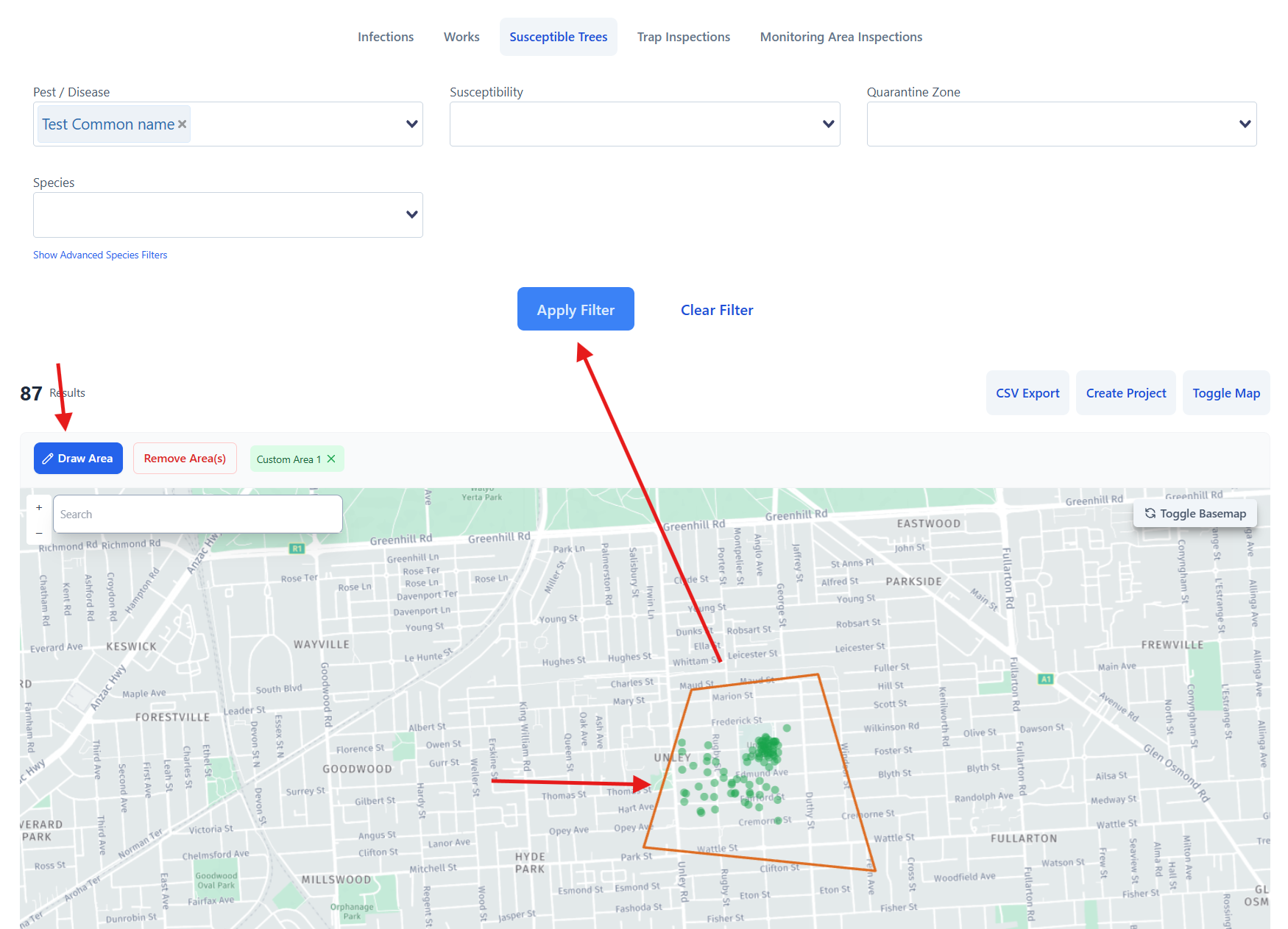
- Create a project and choose Volunteers.
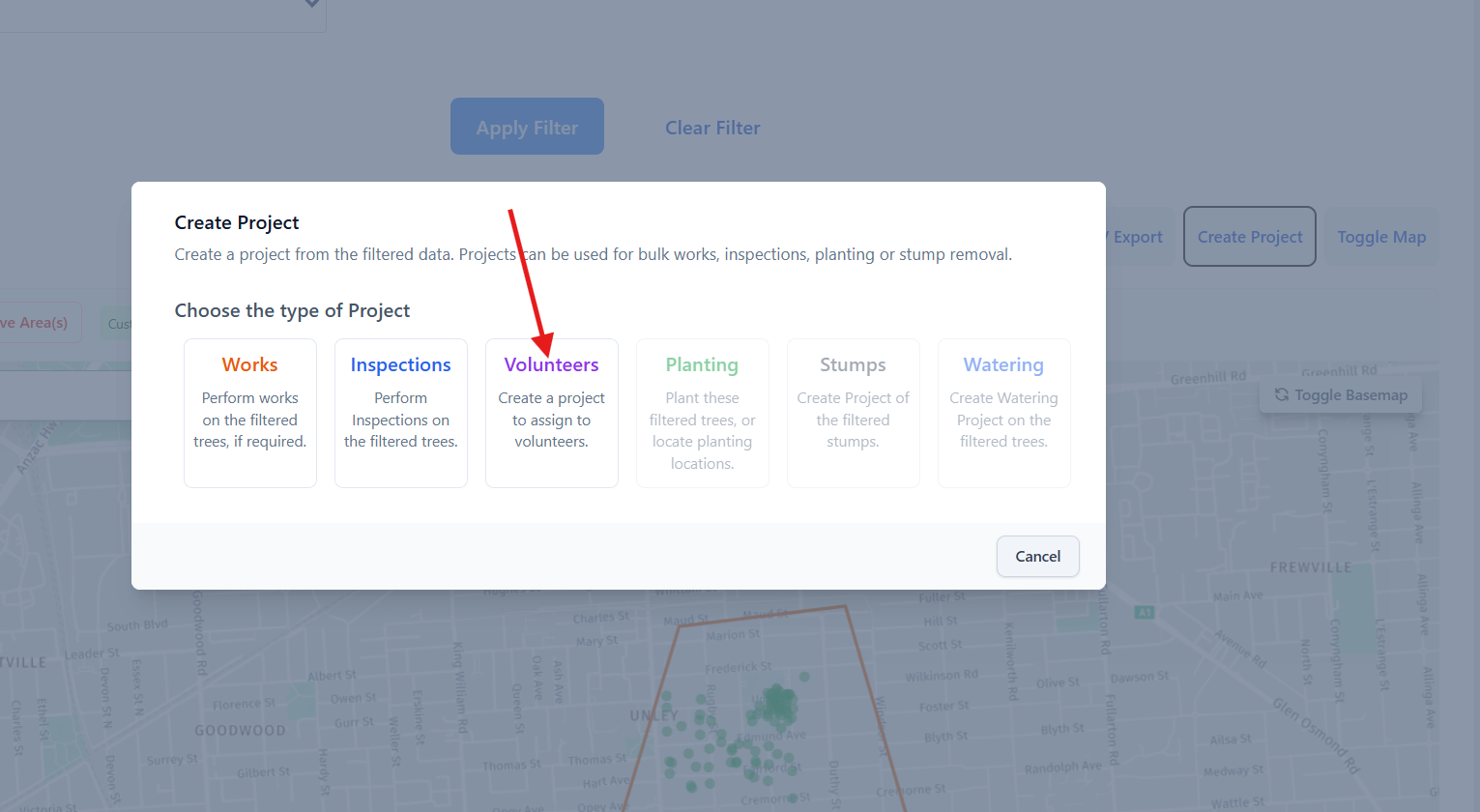
- Select Inspection and choose the form. Only pest and disease inspection forms appear here.
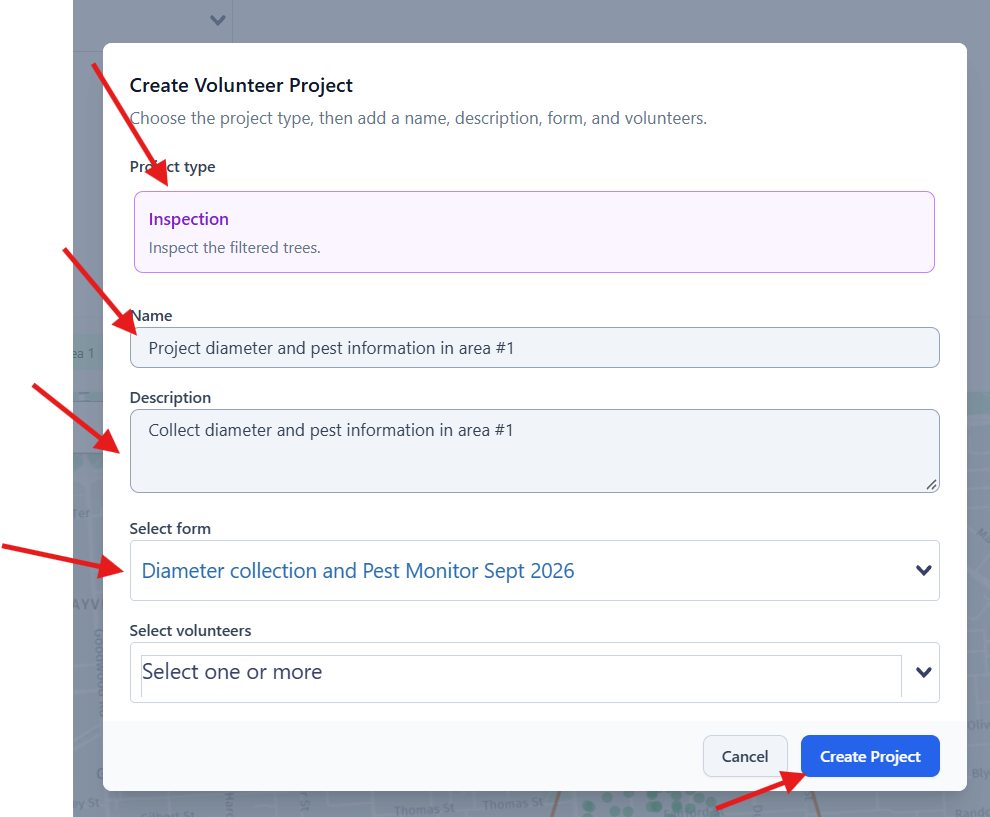
- Optionally assign a volunteer.
- Click Create Project.
Access volunteer projects
Created projects appear under Dashboard → Projects → Volunteer Projects.
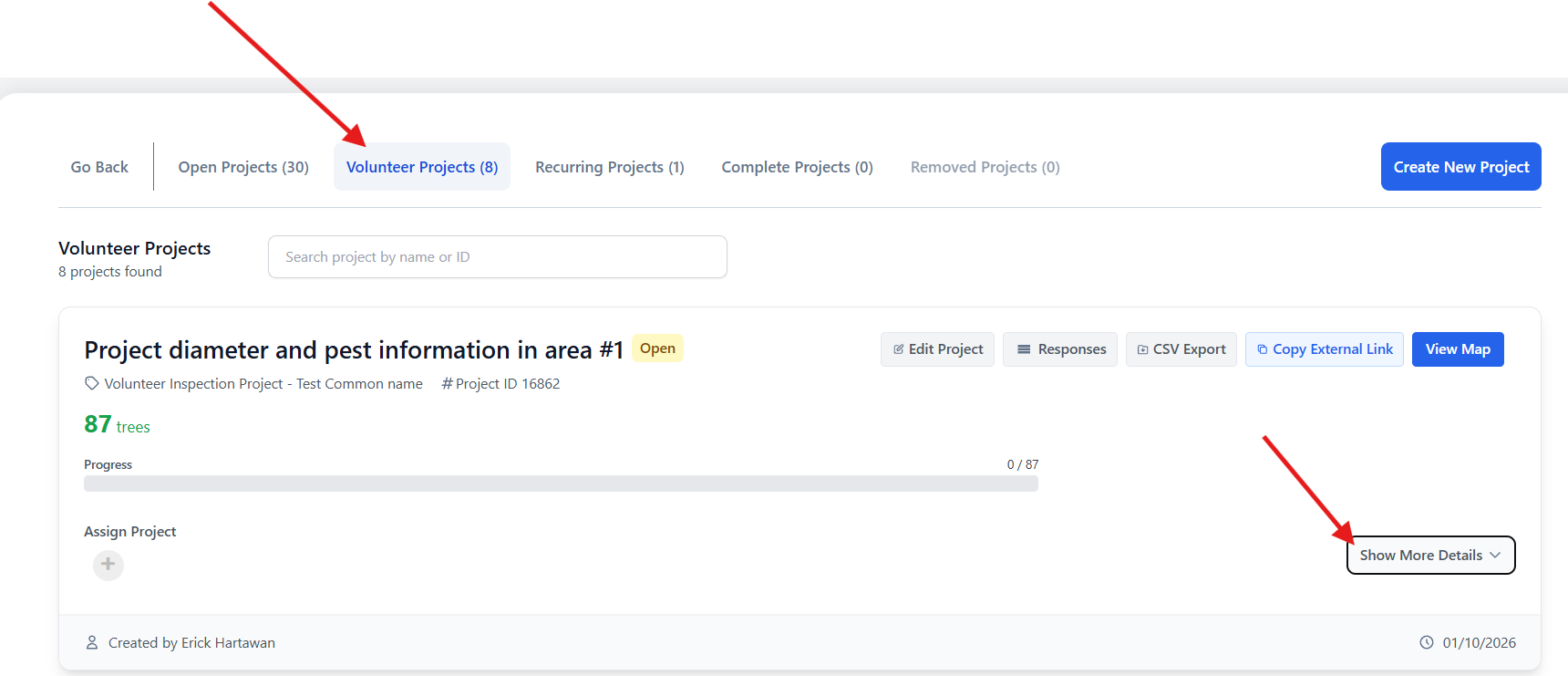
Each project gets an 8-digit guest key. Volunteers use this code instead of an account.
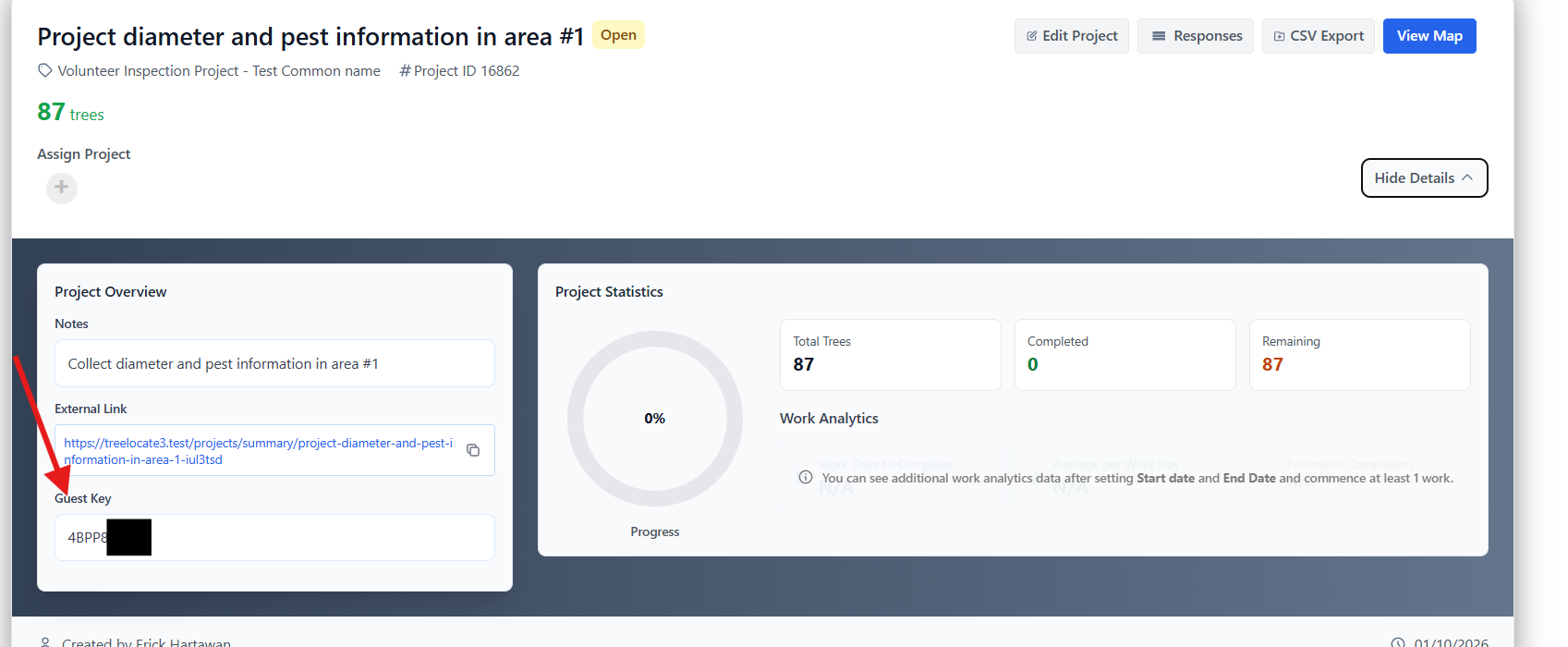
On the project card, click Show more detail to view the guest key and other project details.
How volunteers complete work
- Go to https://heroes.forestree.app.
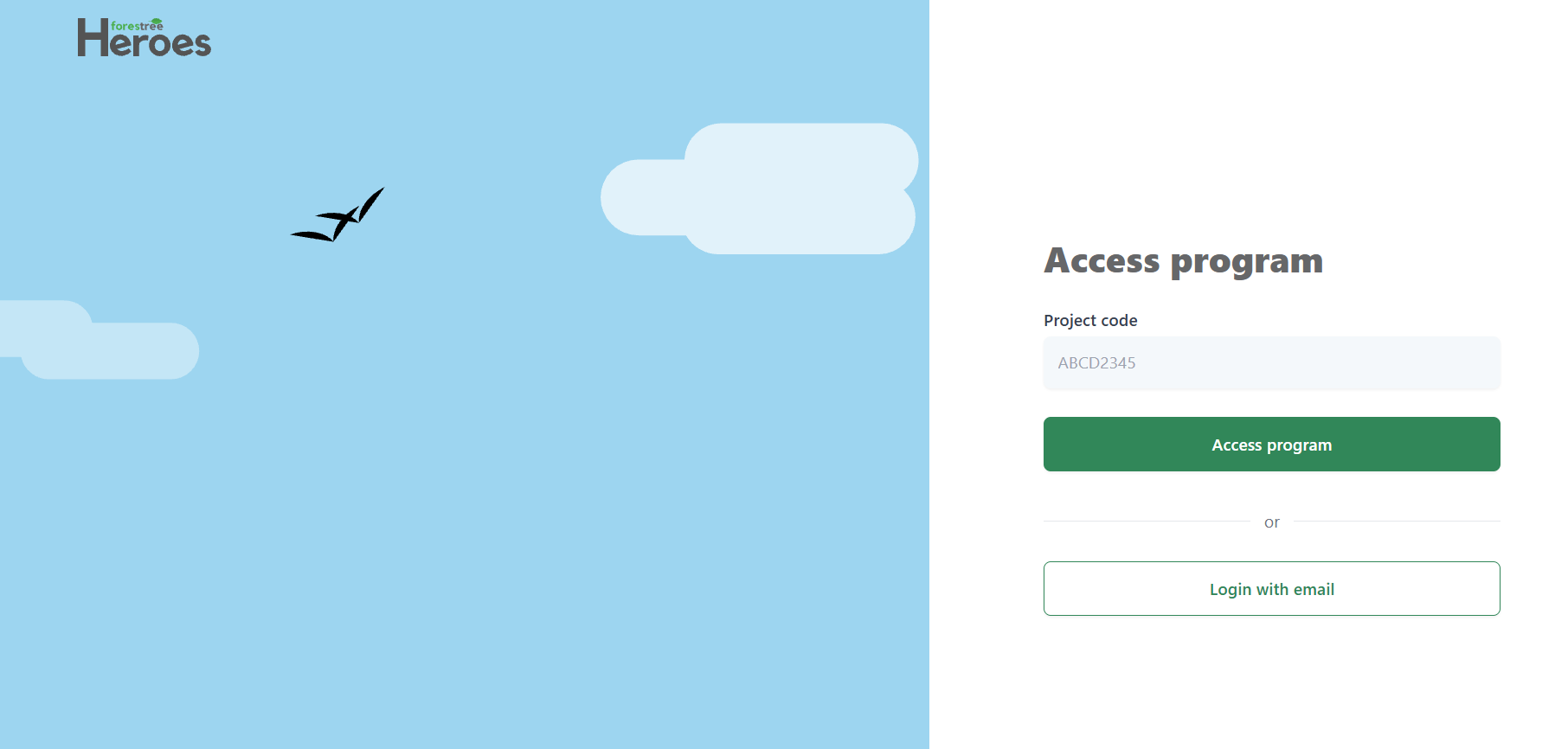
- Enter the 8-digit code.
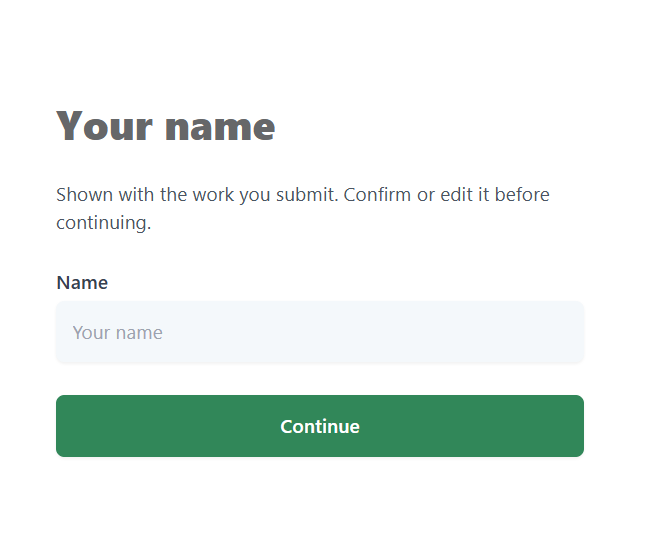
- Enter their name when prompted.
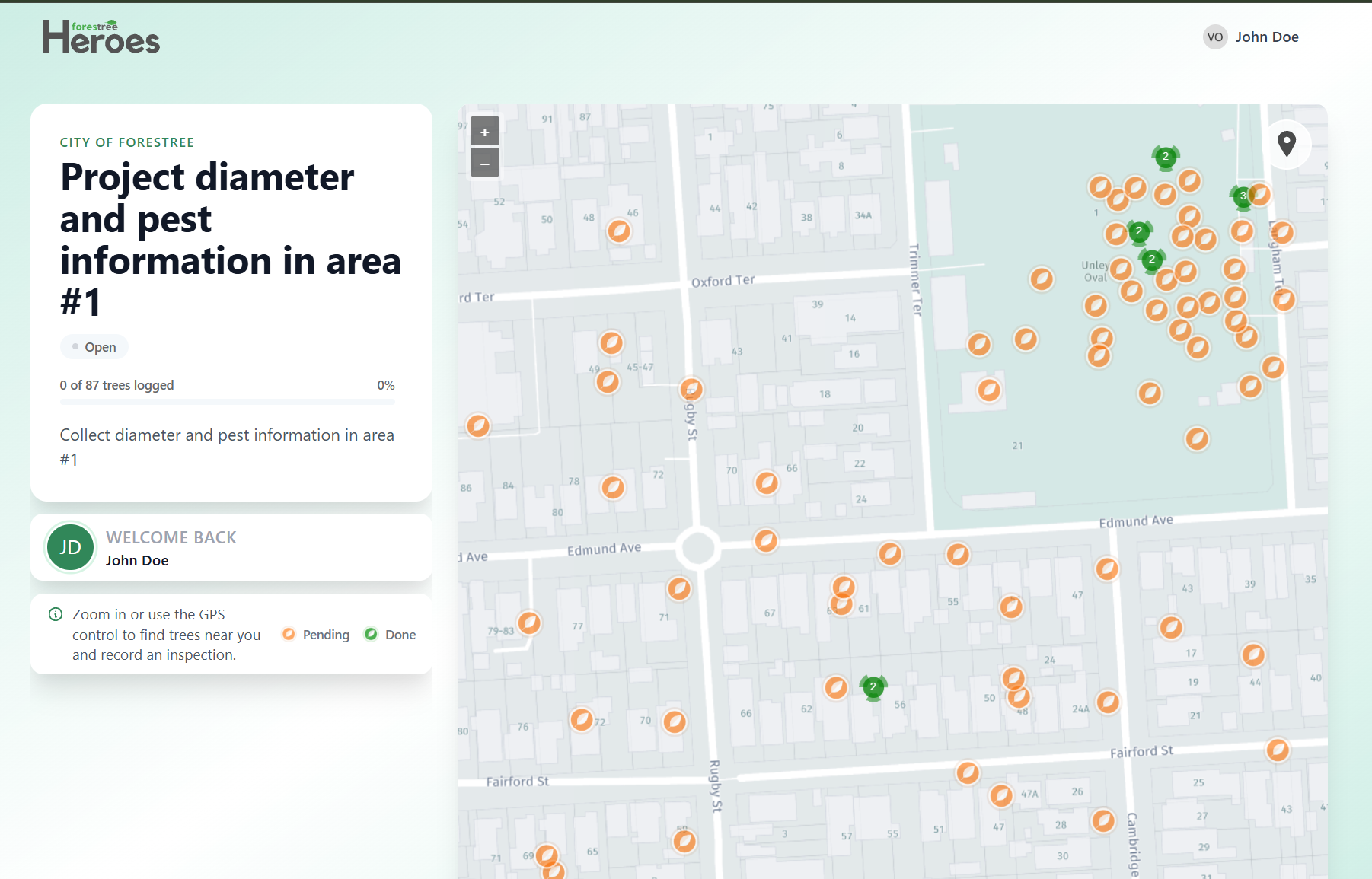
- Complete the inspection using the map and form.
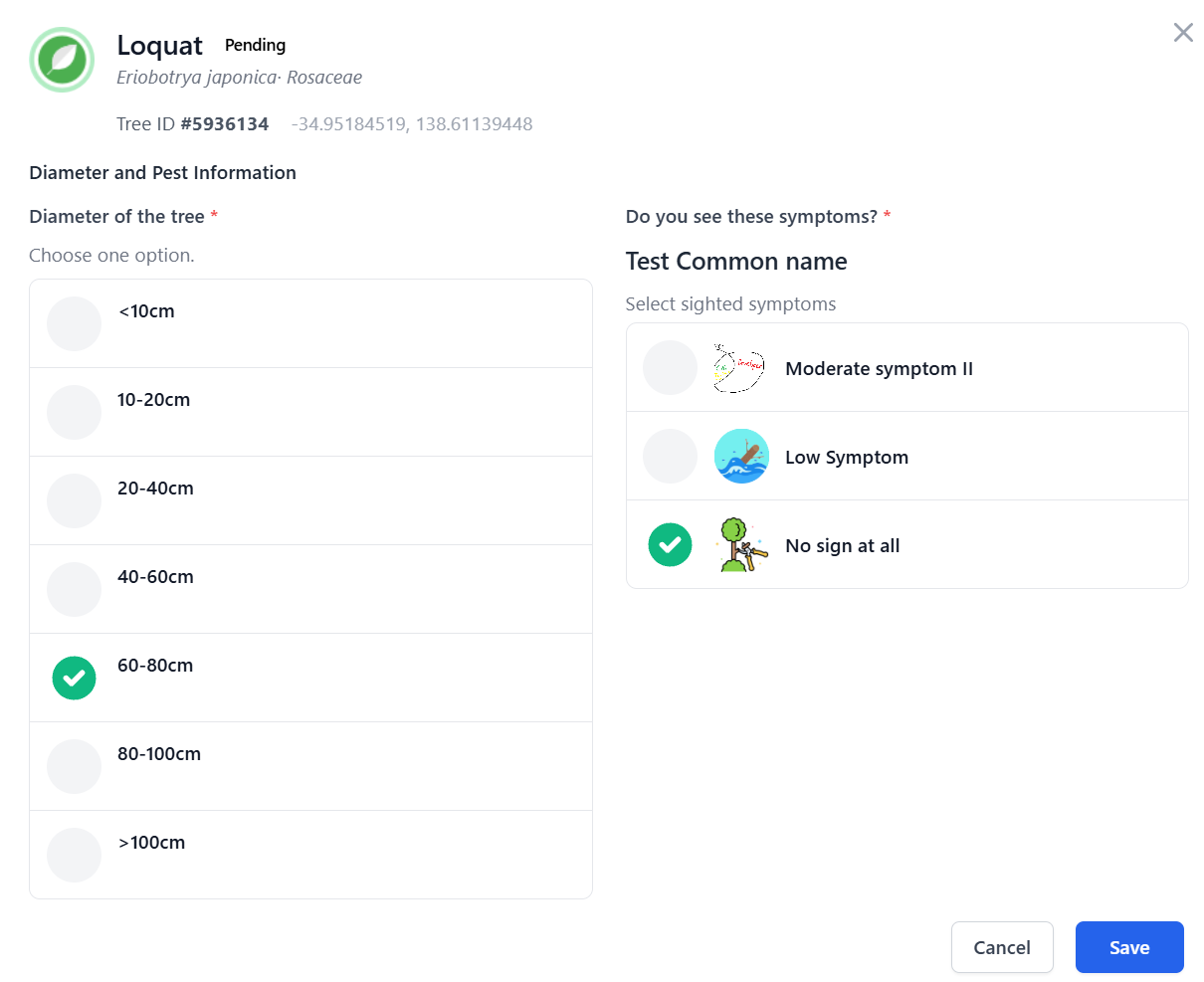
Review and manage responses
Staff review responses from the project card via Responses. Filter by the name the volunteer entered at login.
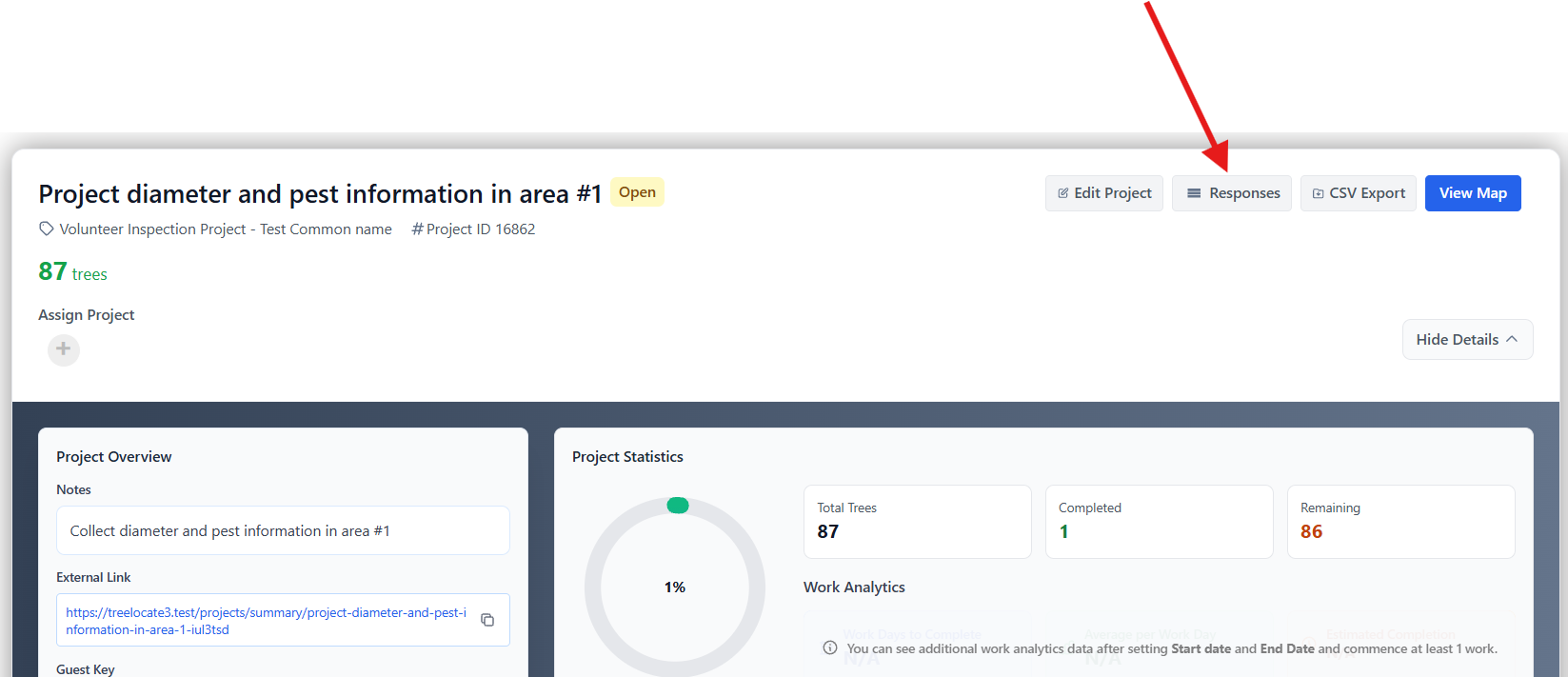
If the form includes the matching fields, accepted responses update tree attributes and pest and disease information.
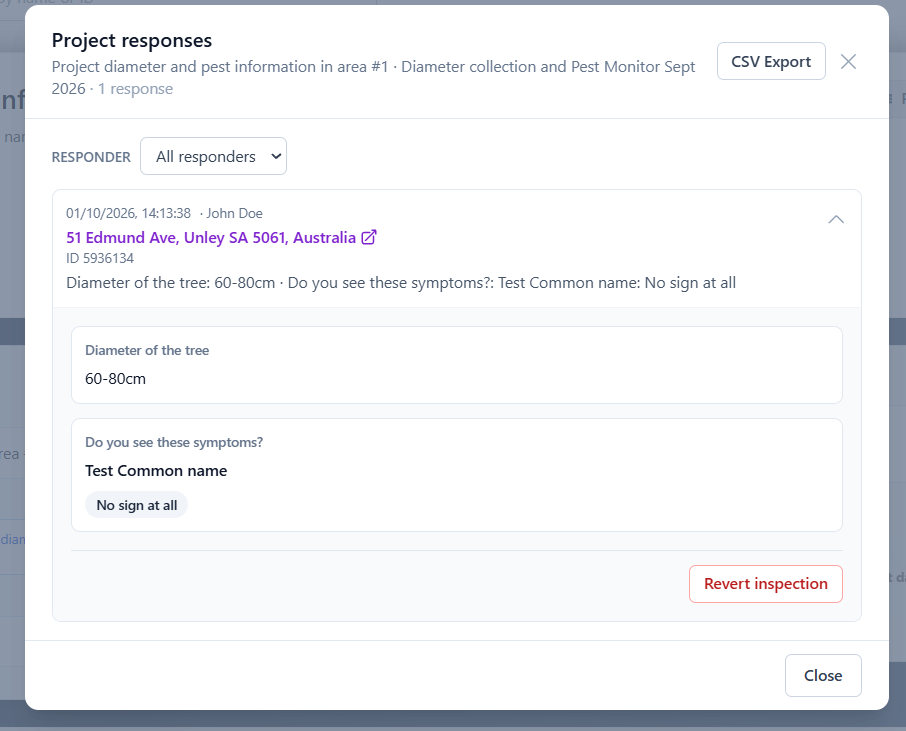
If a submission does not meet your standard, you can revert it and still keep the original response on the Responses page.
Revert a whole submission
Use this when you want to undo everything from one volunteer submission on a tree, such as height and pest and disease data.
Do this from the Responses modal on the volunteer project.
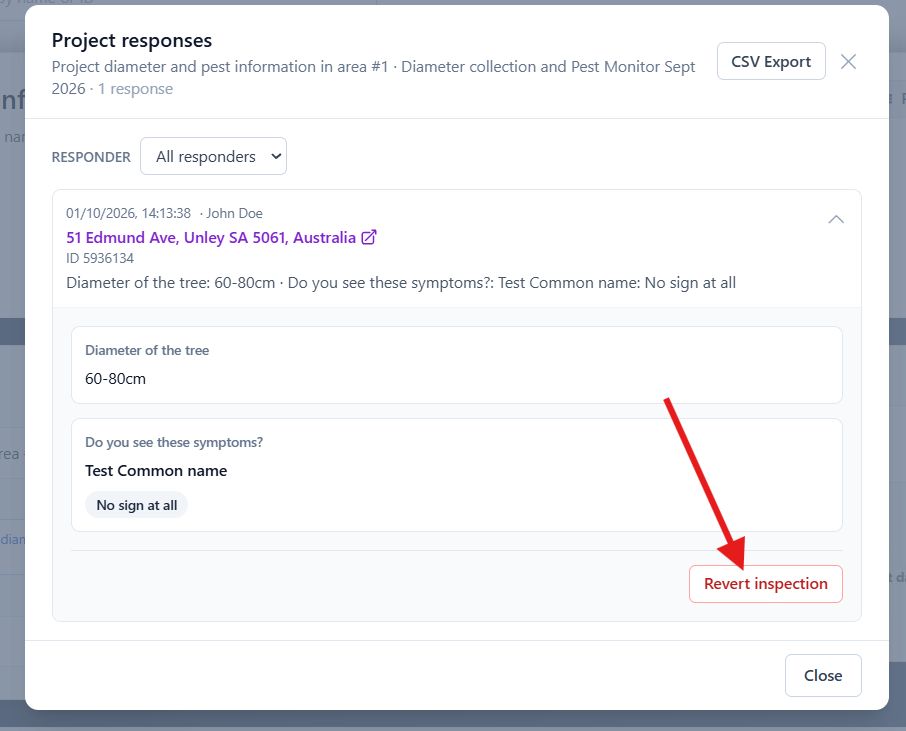
Partial revert
Use this when you want to undo some fields and keep others. For example, revert height but keep pest and disease data.
Do this from Tree Information on the inspection map. A green hands icon marks values collected by a volunteer.


Please contact [email protected] for more information.